Setting up a Message/Pop-Up Banner
Edited
Log in to your Fisherman Dashboard (app.gofisherman.com)
Go to the “Business Info” tab (left side of the dashboard), and there you’ll see a section where you can add/edit your “Message Banner”
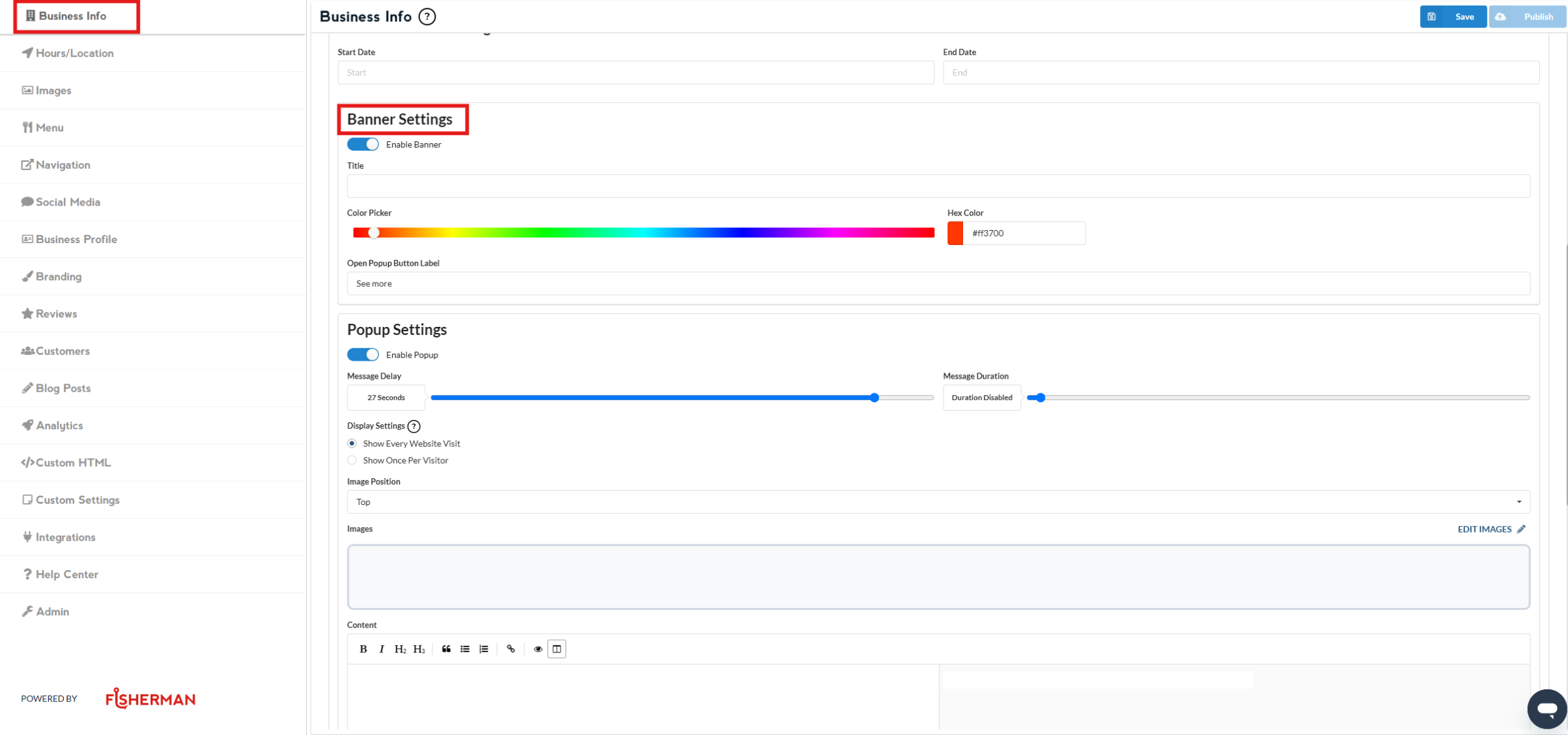
Insert your “subject and content” (You may also put a start and end date)
To set your expectations:
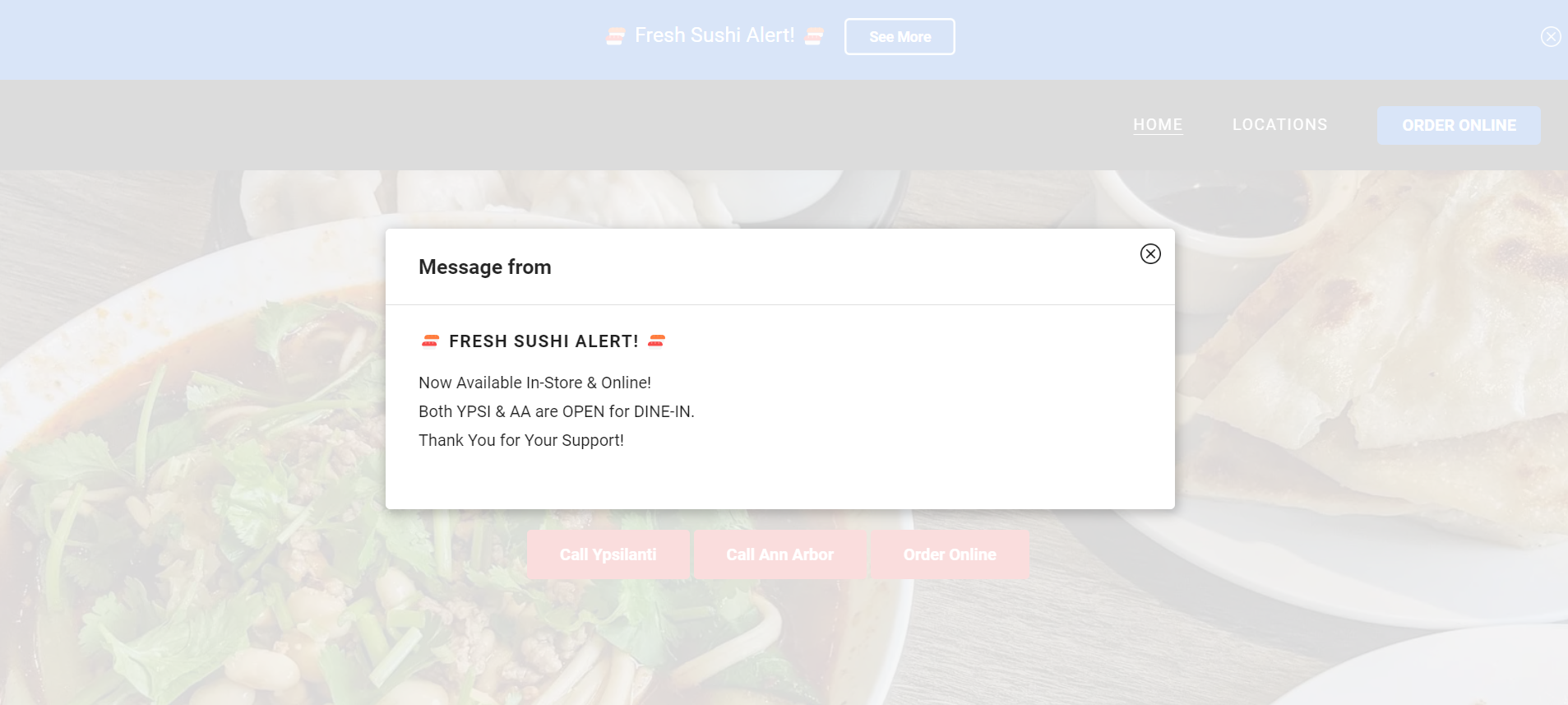
You will have a pop-up banner if you insert both subject and content (see sample below)
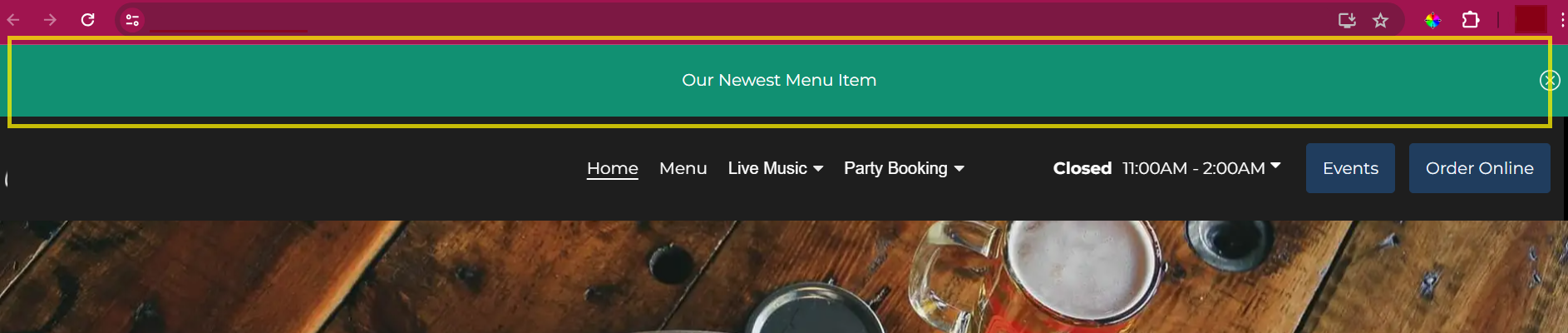
You will have a website ribbon above the page if you only insert a subject (see sample below)
Once done editing, click on Save and then Publish
Note: Changes that you do to the website appear 2-3 minutes after you click on Publish