Uploading Files (PDFs or Images) to Your Menu
To upload and embed files such as PDFs or images on your Menu list, follow these steps:
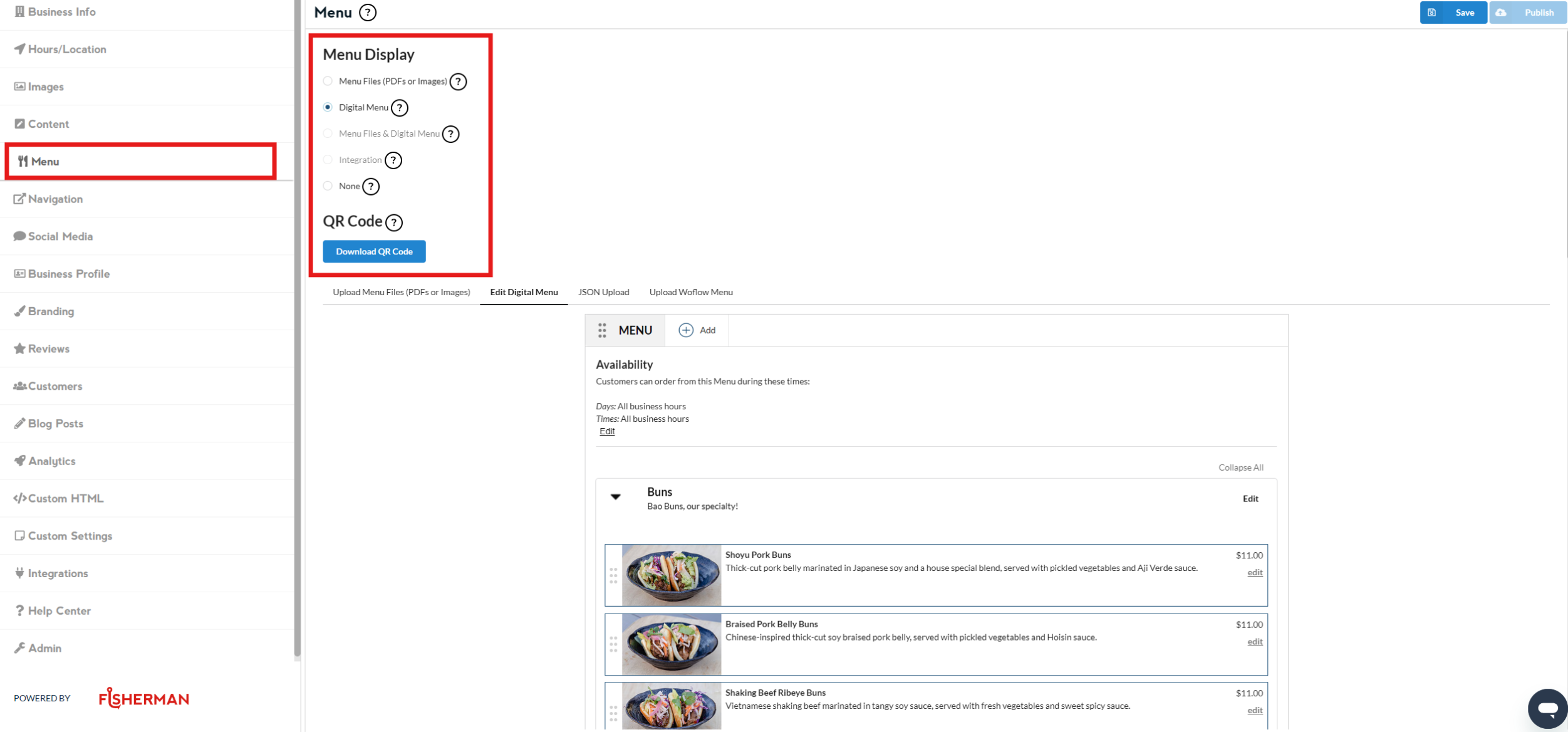
Access the Dashboard
Click on Menu on the left-hand side of the Dashboard.
Select File Upload
In the multiple-choice selection, select Menu Files (PDFs or Images).
Upload Your File
Click on the Upload button and select the file from your device. Please note that you can only upload files in PDF, JPEG, or PNG format and the file size must be under 5MB.
Choose for Upload
Once your file is selected, click Choose for Upload in the bottom right corner of the pop-up window.
Optional: Add a File Name
Add a File Name, which will display above the embedded image or as a button label on mobile devices (e.g., Service Menu, Price List).
Save and Publish
Finally, click Save in the top right corner and Publish.
Creating a QR Code for Your Menu List
If you need to create a QR code for the list of your Menu, follow these additional steps:
Generate QR Code
After uploading and saving your file, locate the Download QR Code button on the same page.
Download QR Code
Click the Download QR Code button to generate and download the QR code for your Menu list.
By following these steps, you can easily upload and display important files like your service menu or price list on your salon's website. Additionally, you can generate a QR code for quick access to your Menu list, making it convenient for your customers to view your offerings.