How to Add or Edit Business Address, Email and Phone Number
How to Add or Edit Business Address
Login to your Fisherman Dashboard (app.gofisherman.com)
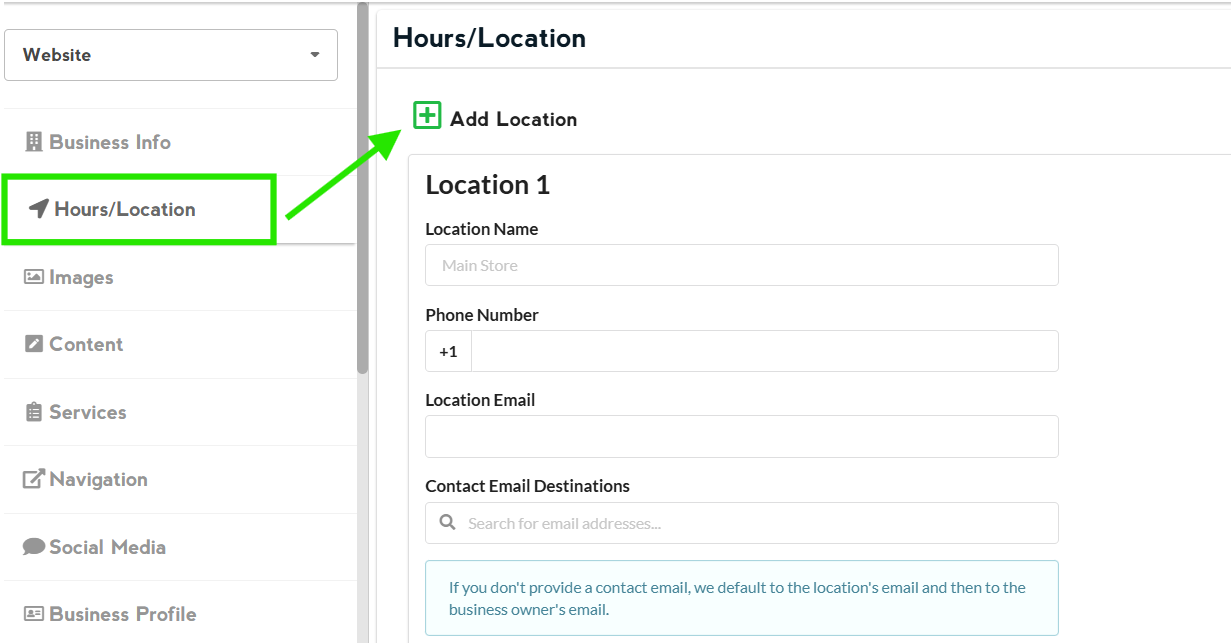
Go to “Hours/Location” section (left side of the dashboard), and there you’ll see a section where you can edit your “Address”
You can edit your existing address on this section
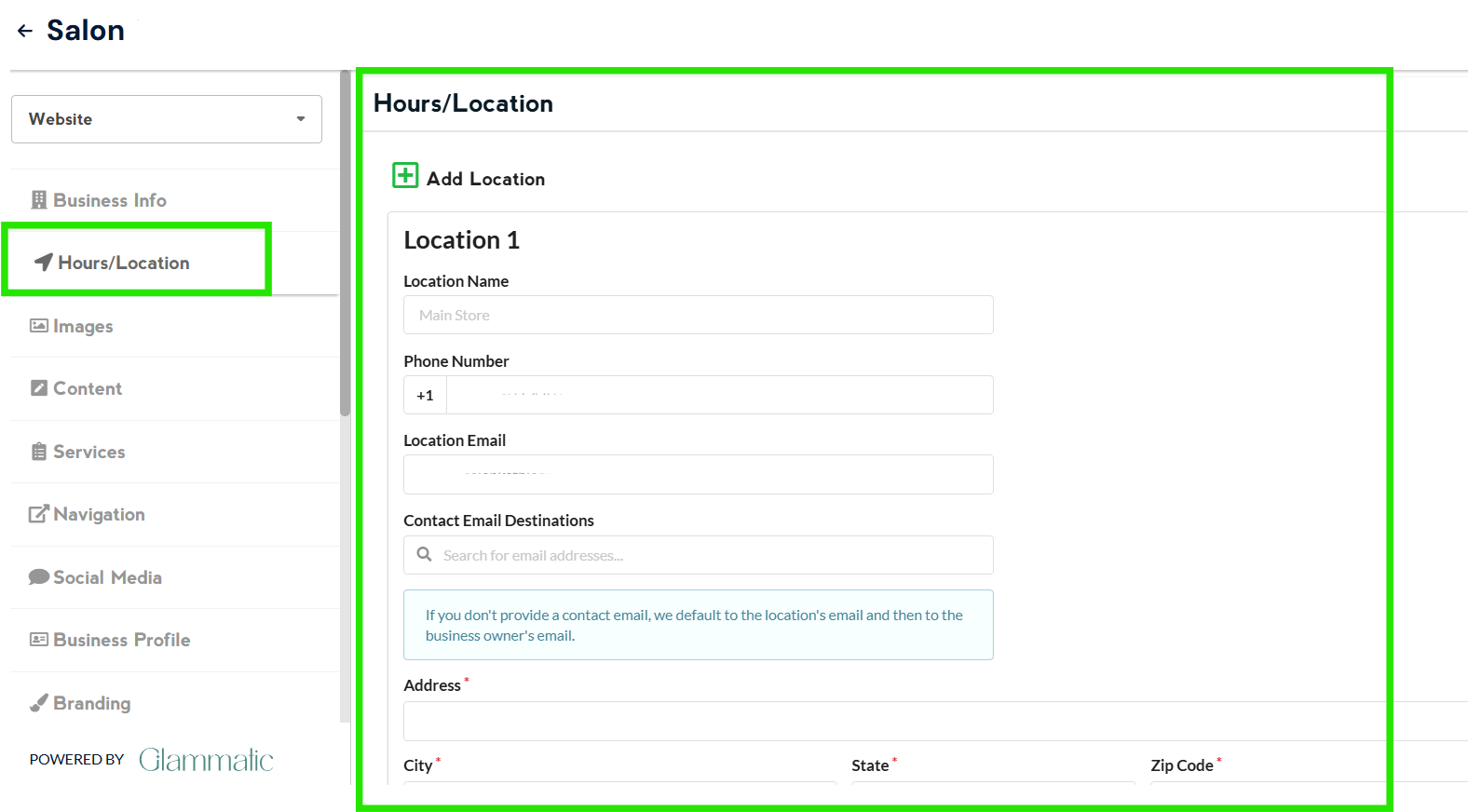
You can add new address by clicking this button
Once done editing, click on Save and then Publish
Note: Changes that you do to the website appear 2-3 minutes after you click on Publish
How to Add or Edit Phone Number
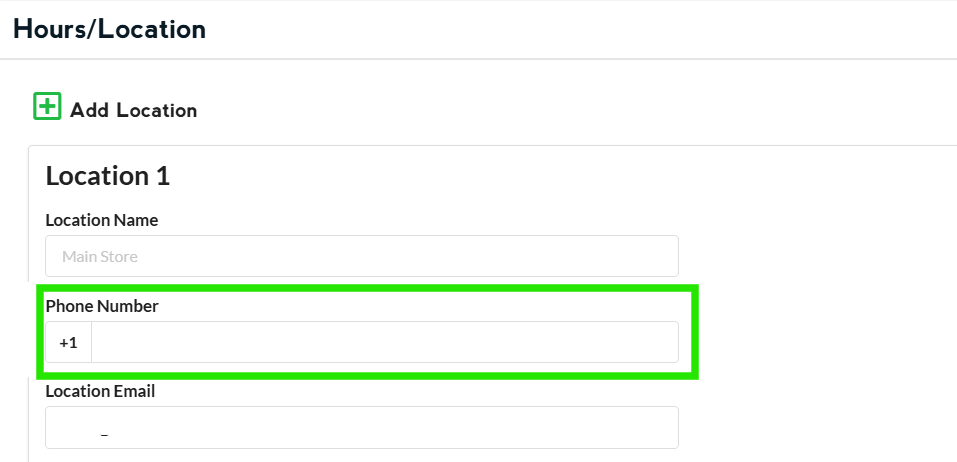
Go to the “Hours/Location” section (left side of the dashboard), and there you’ll see a section where you can edit your “Phone Number”
Once done editing, click on Save and then Publish
Note: Changes that you do to the website appear 2-3 minutes after you click on Publish
Location Email
Note: The email address entered in this field will be displayed on your website. You have the option to not put anything here and still receive contact form emails to your desired email address
Go to the “Hours/Location” section (left side of the dashboard), and there you’ll see a section where you can edit your “Location Email.”
Once done editing, click on Save and then Publish
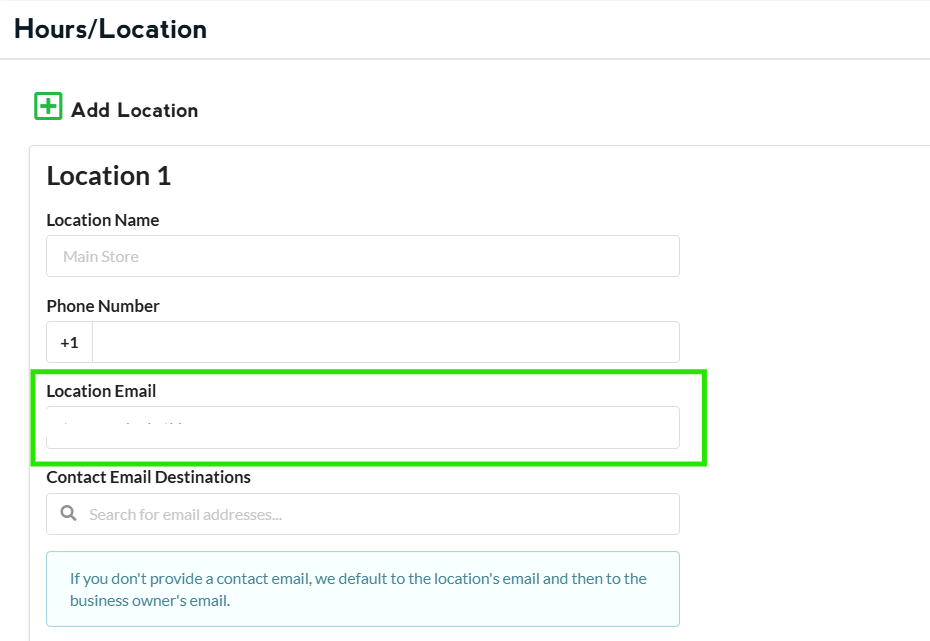
Contact Email Destination
Note: The email address entered in this field will NOT be displayed on your website. If this is filled out, all contact form emails will be sent here. If you do not provide anything here, the default email recipient will be the contact email, then the user email.
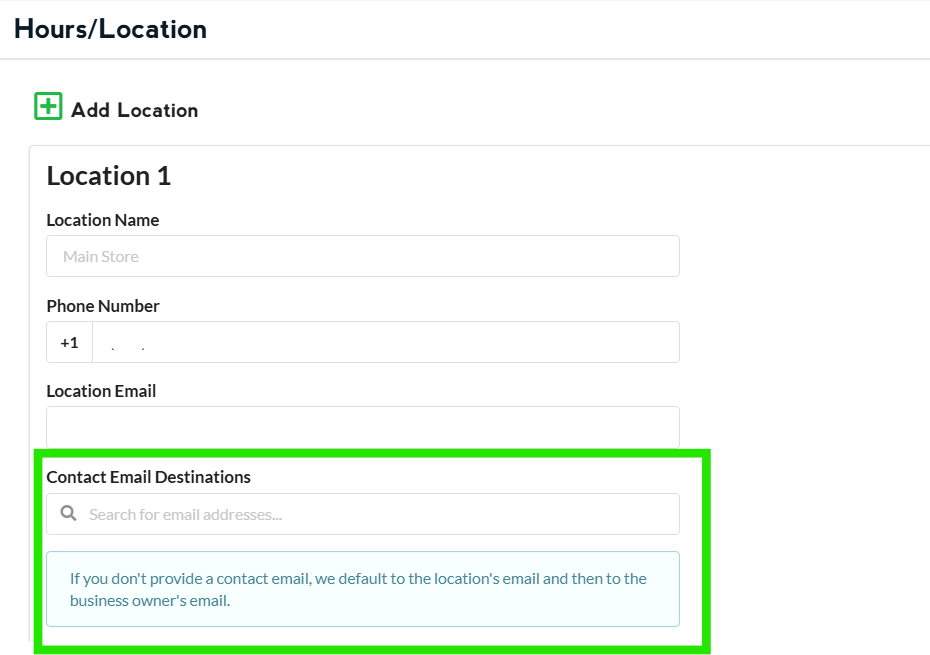
Once done editing, click on Save and then Publish
Note: Changes that you do to the website appear 2-3 minutes after you click on Publish