Modifying Your Headers and Descriptions
This guide will help you update the Welcome description, About description, and any additional description pages on your website.
1. Navigate to the Content Page:
Log in to your dashboard.
Click on the “Content” page from the list.
2. Choose the Description to Update:
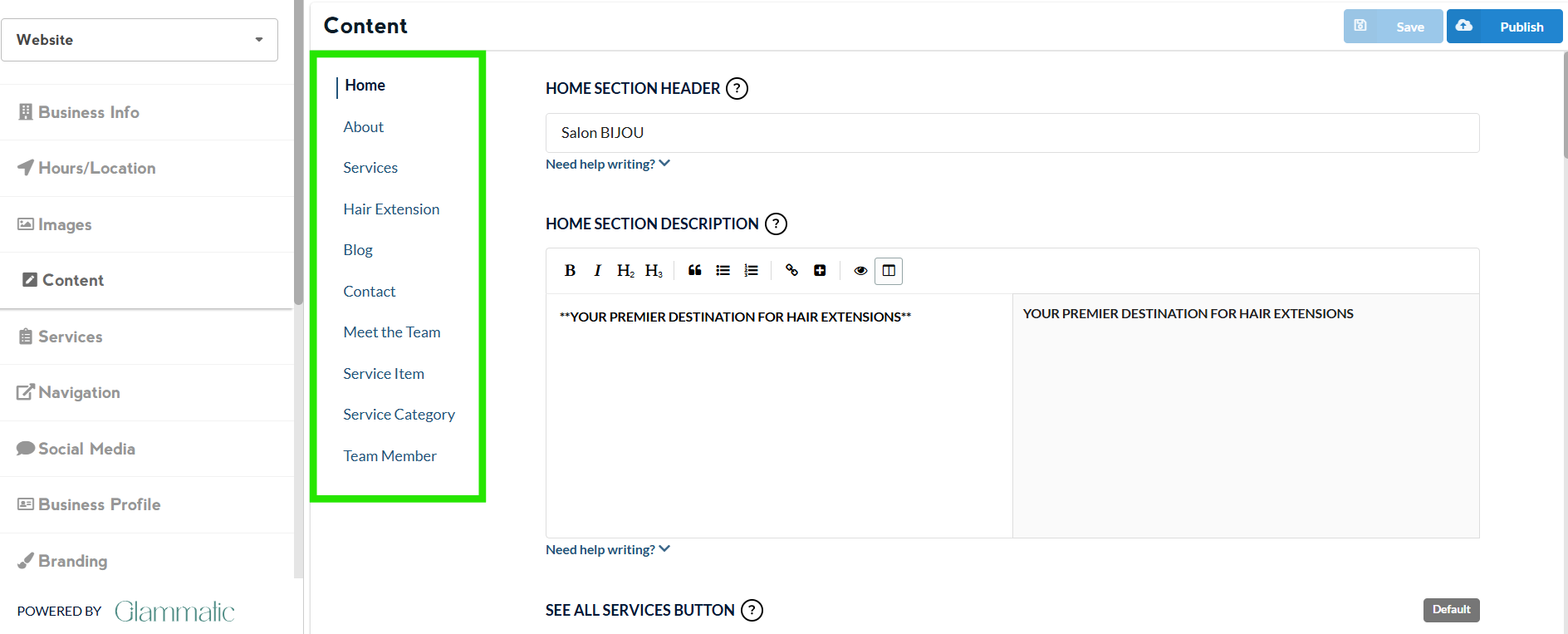
HOME - allows you to edit the headers and description in the Home page
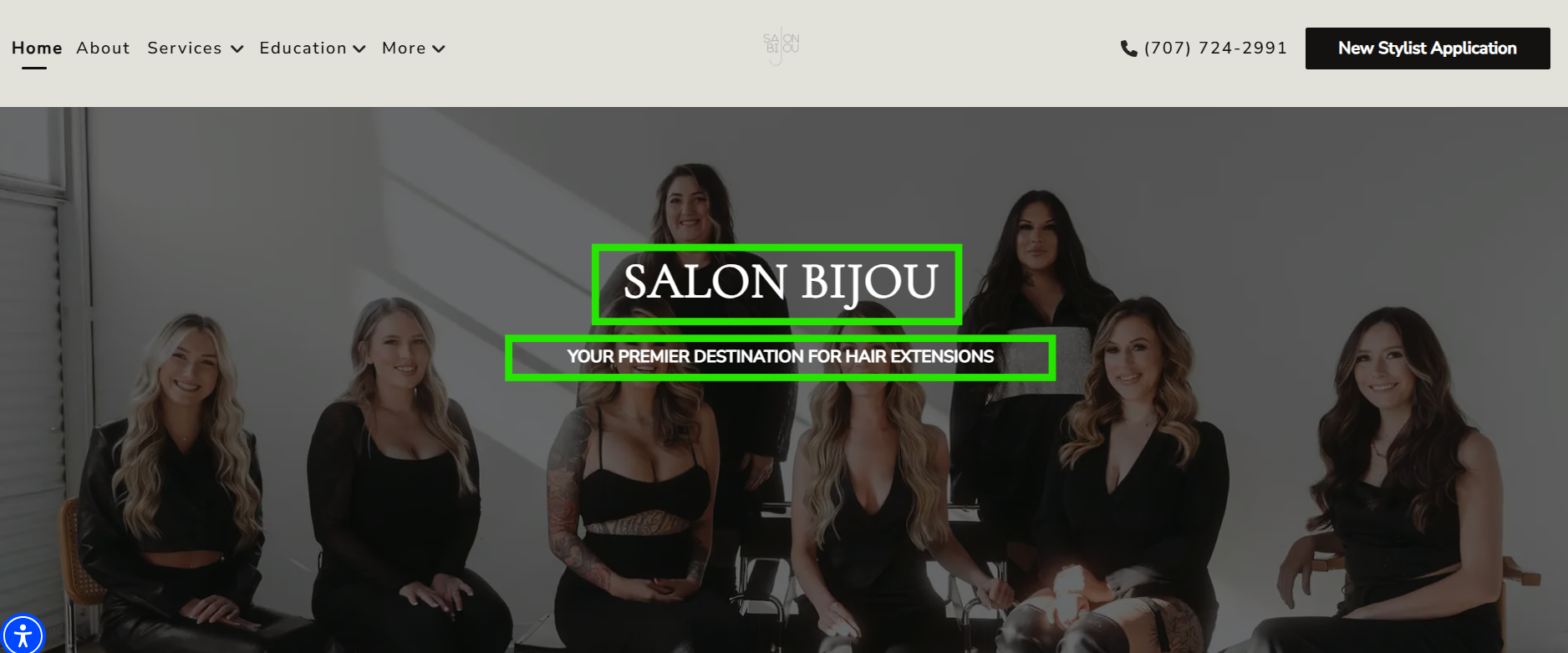
For example, the Home Section Header and Home Section Description will appear in the middle of the home page banner.
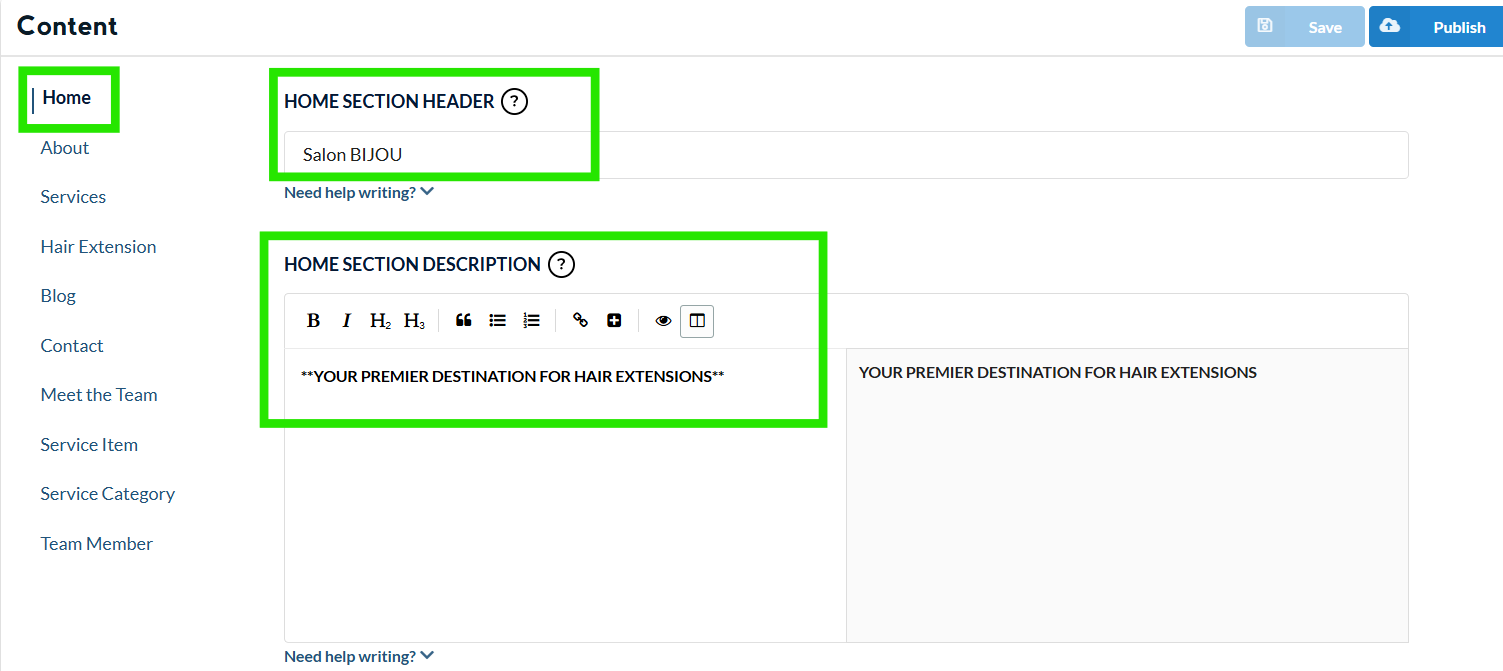
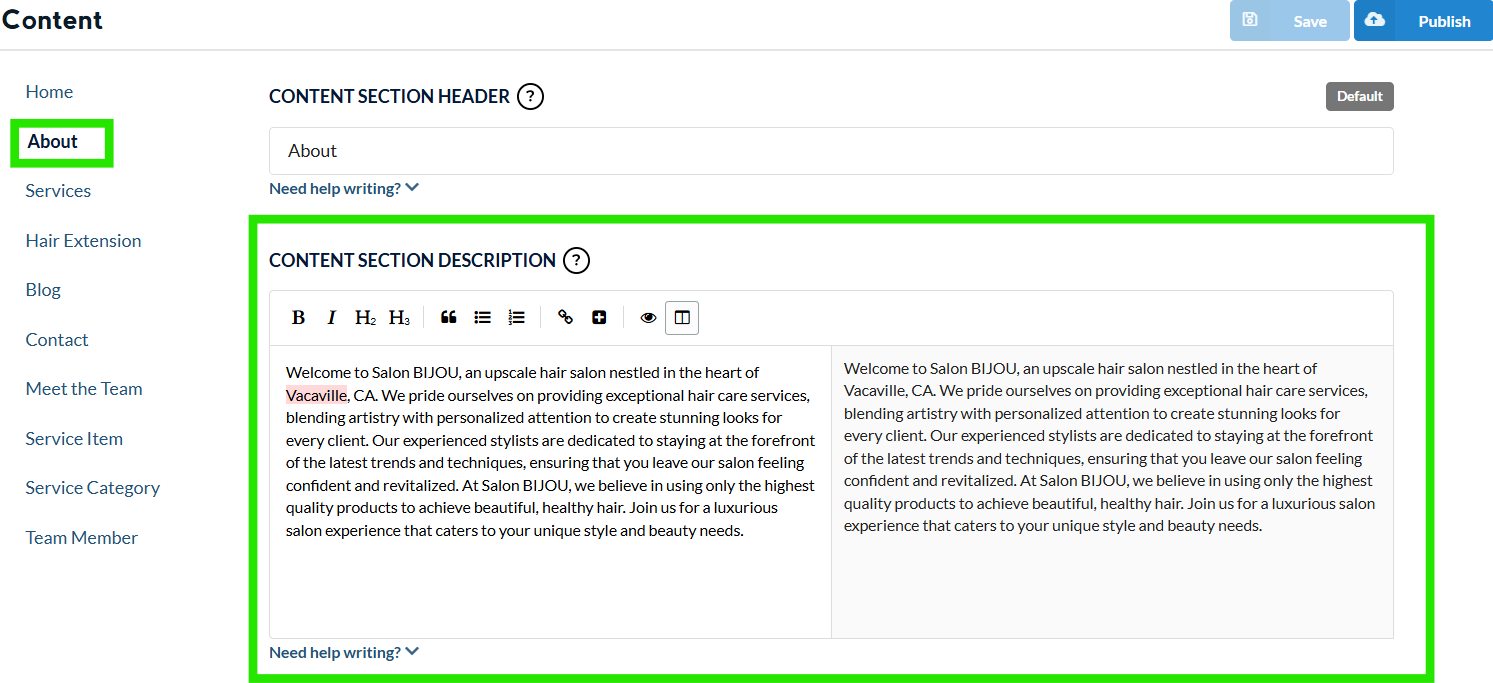
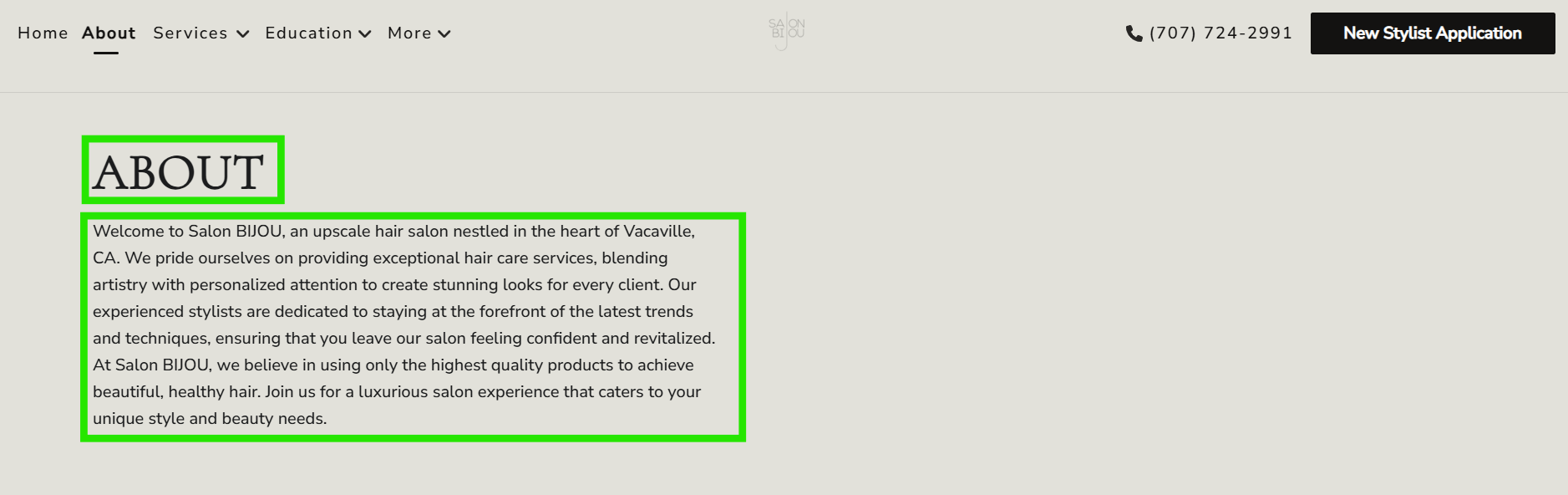
ABOUT - allows you to edit the headers and description in the About page
For example, any Content Section Header and Content Section Description will appear in the about page here:
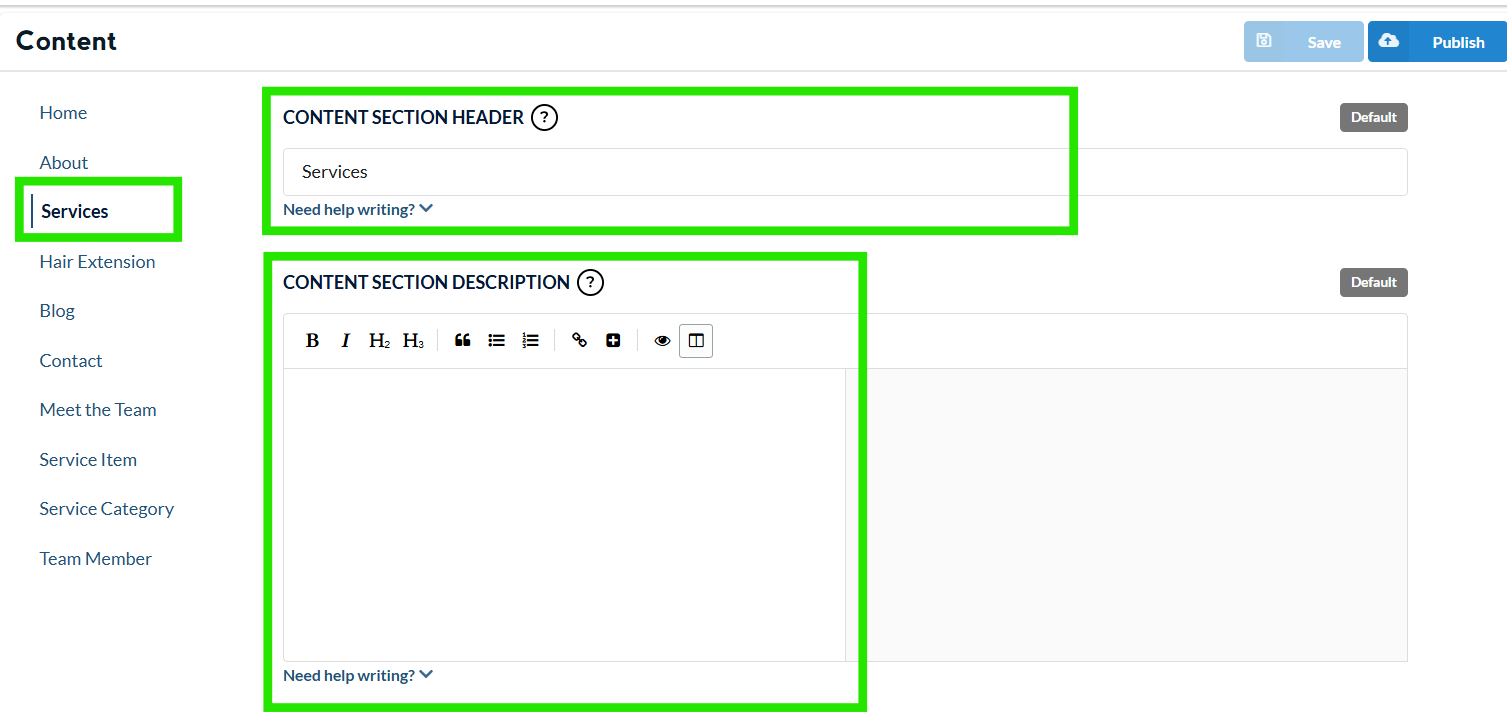
SERVICES- allows you to edit the headers and description in the Service page
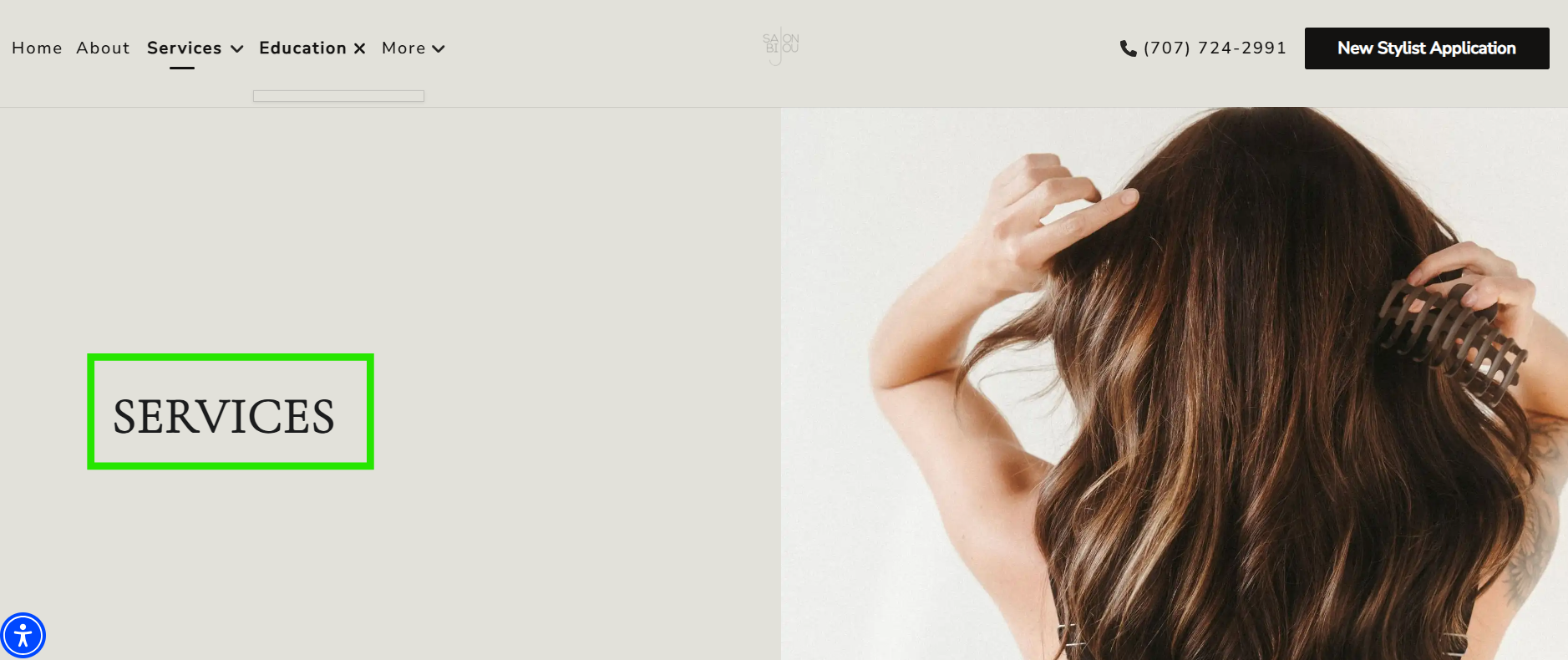
For example, any Content Section Header and Content Section Description in this section will appear in the service page here:
In this case, no description was added to the service page, which is why the page on the website also doesn’t have a description.
Note: Other tabs in the content section vary by business, as some pages are customized or added based on special request.
3. Edit the Text:
In the text box of the section you want to edit, simply change or add the text as needed.
When you first sign up for your website, there will be a generic About Description that includes your business name and the city you're located in.
To create a compelling Welcome and About description, consider the following:
Clearly state the name of the business and its physical location, if applicable.
Highlight what makes the business unique or different from competitors.
Provide a brief history of the business, including when it was founded and any significant milestones.
Provide a detailed description of the services or products the business offers. Use relevant keywords that potential customers might use in their searches.
4. Once you are satisfied with your descriptions and formatting:
Click the “Save” button.
Then click the “Publish” button to make your changes live.
By following these steps and tips, you can ensure that your website's content is engaging and optimized for better SEO visibility. If you need any further assistance, feel free to reach out to our support team.