How to Add, Edit, Delete Staff Members
Login to your Dashboard (app.gofisherman.com)
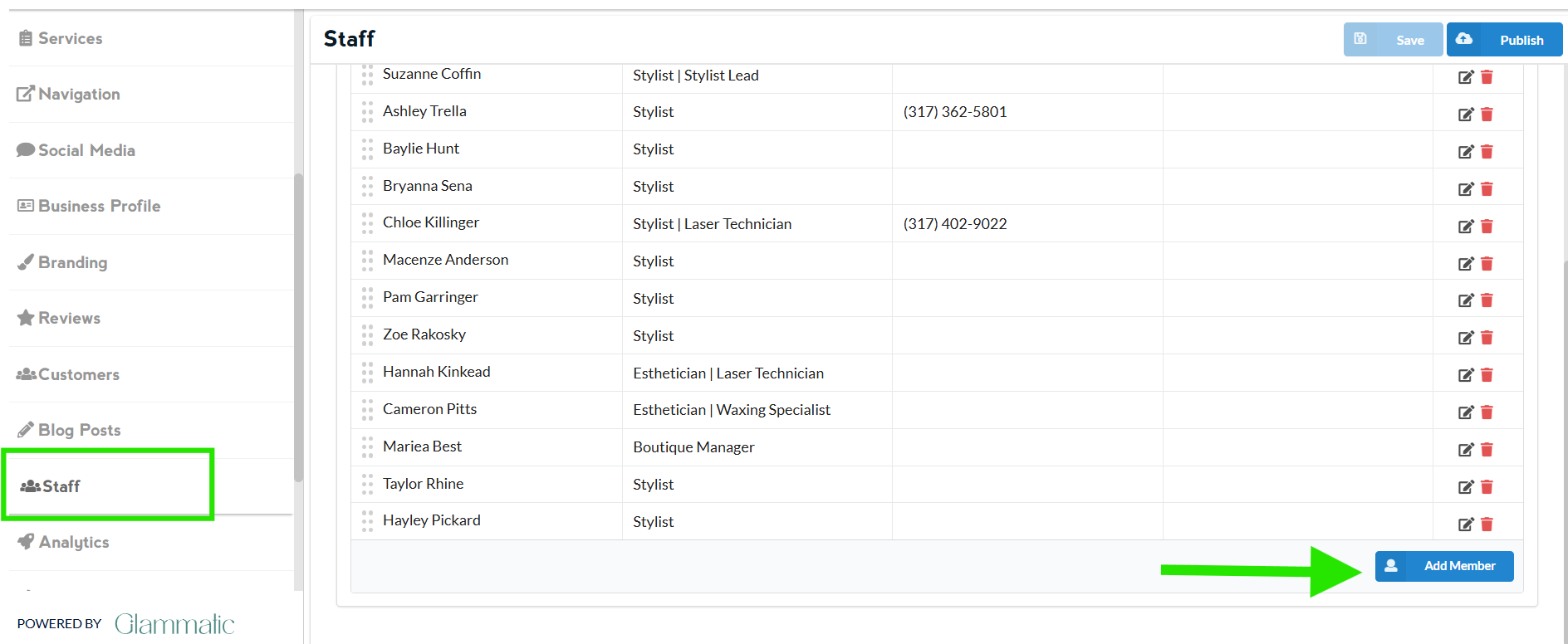
Go to the “Staff” section (left side of the dashboard)
Click “Add member” to add a stylist or staff member\
*You can edit staff details by clicking the note icon
*You can delete a staff member by clicking the trash bin icon
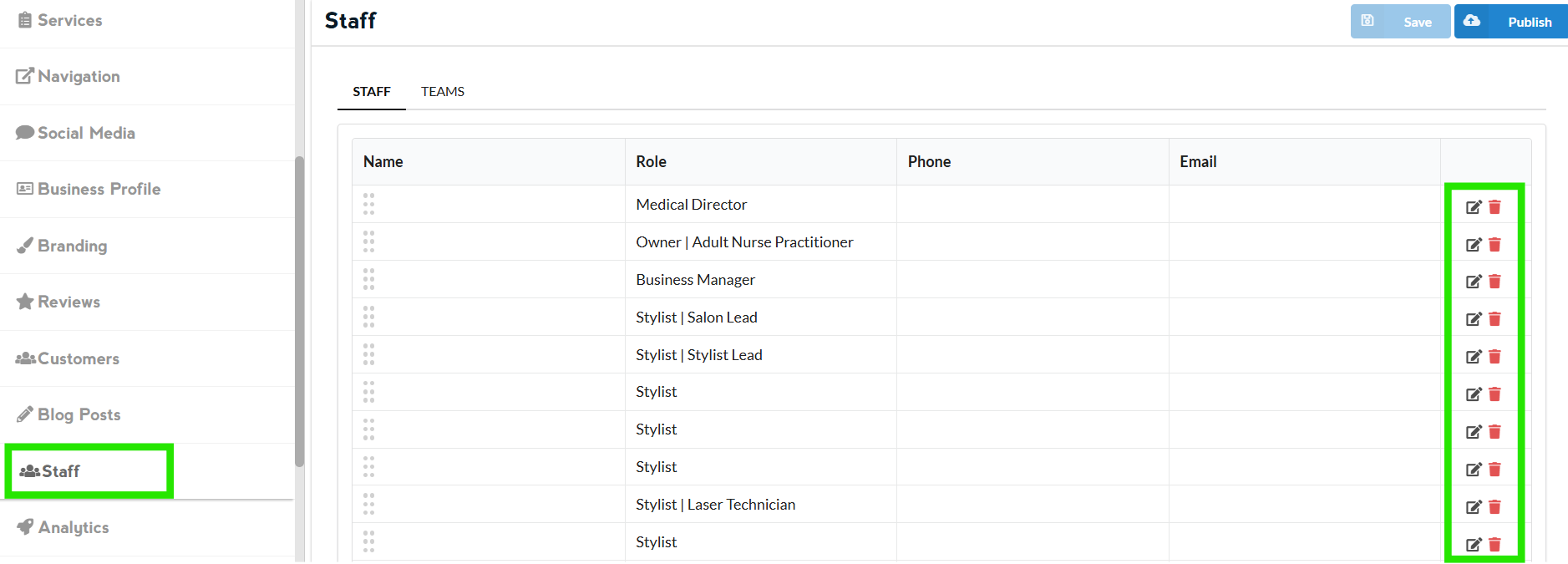
Once done editing, click on Save and then Publish
EDIT MEMBER
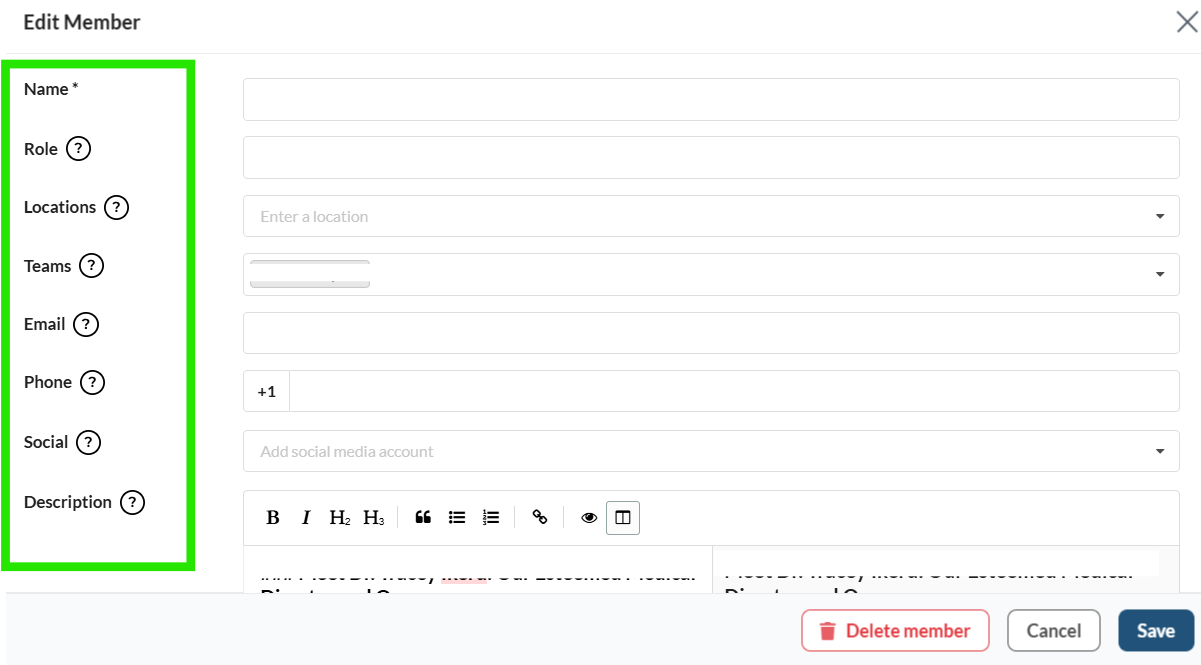
You can edit Name, Role, Staff Locations, Email, Phone Number and Social
Teams is filled out when you want your staff to be displayed on the website in different categories. Choosing which team they are on will place them in that category.
Description is where we enter the details of the staff.
Buttons gives the option to add a button or buttons on the staff page with their booking link
Availability gives the option to set the staff availability if they have a specific schedule.
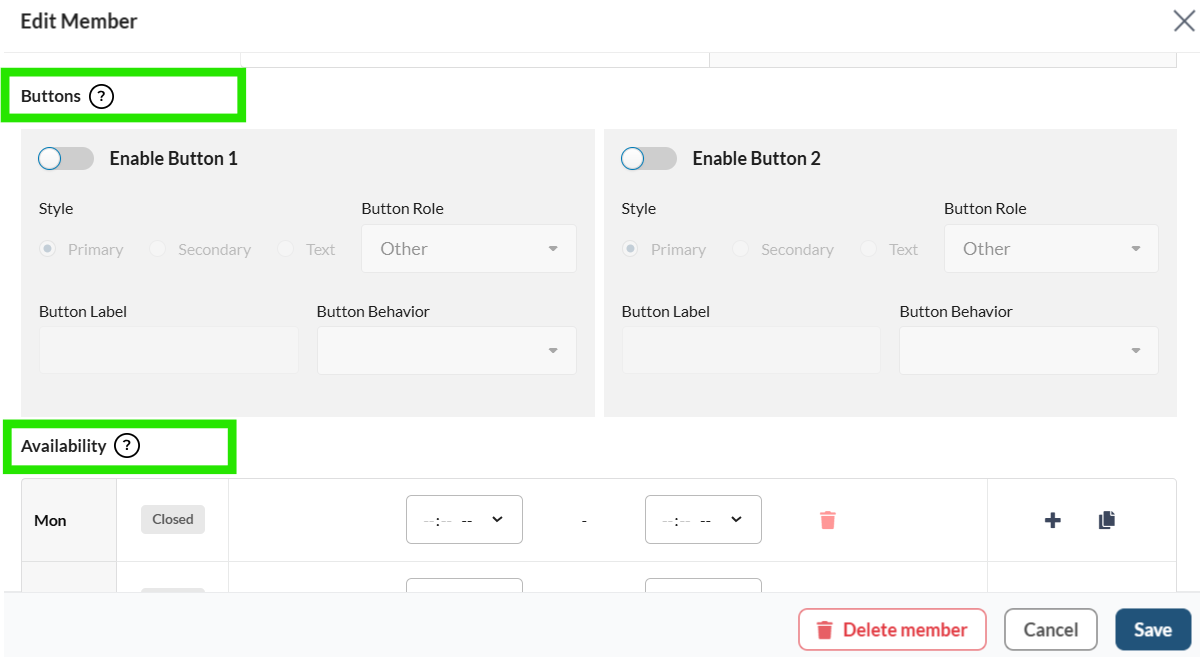
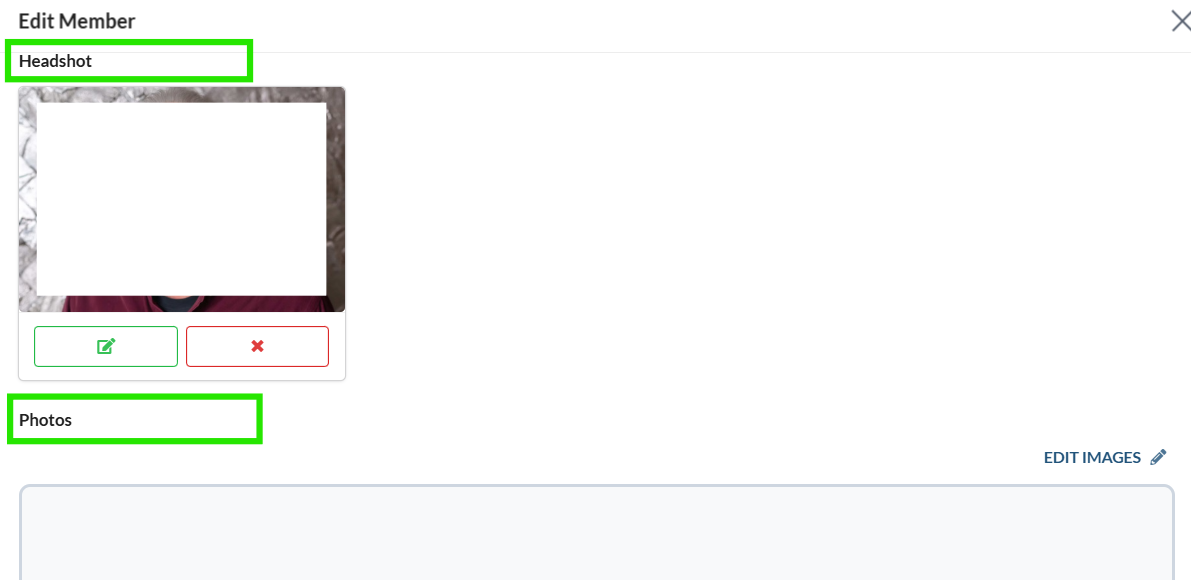
Headshot gives the option to add staff photo
Photos below the headshot allow you to add photos of the artist's works. Simply click on ‘Edit Images,’ and you’ll see the option to upload photos.
Note: Changes that you do to the website appears 2-3 minutes after you click on publish
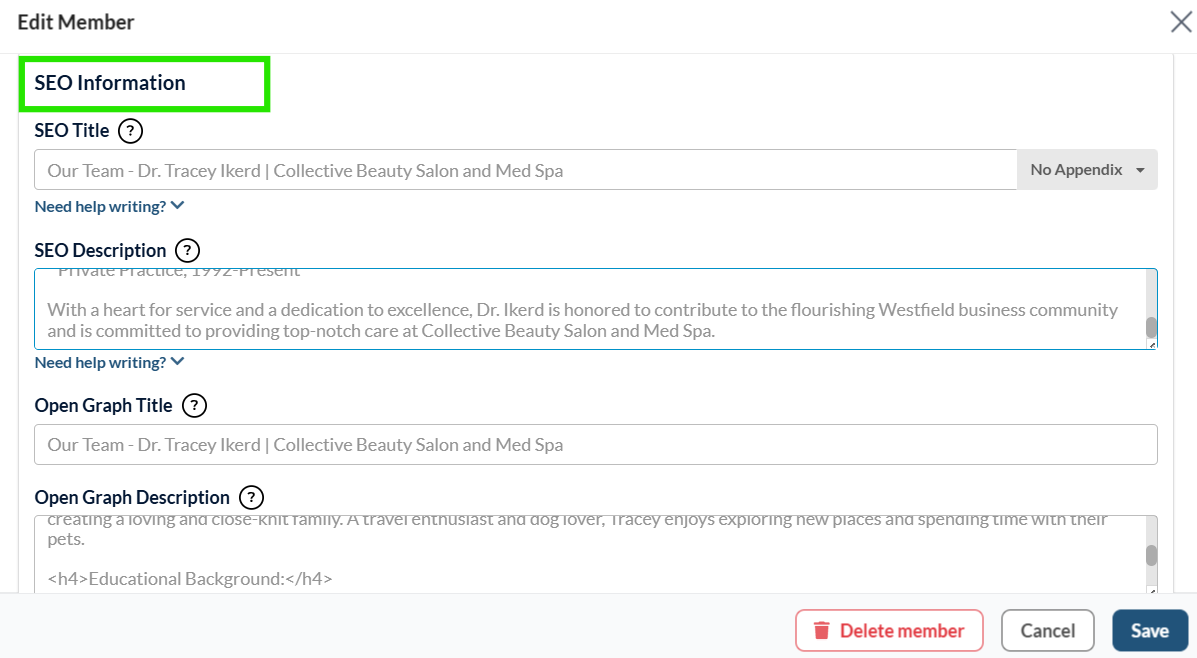
SEO Information The summary here is accessible to both users and search engine algorithms, allowing you to focus on keywords to improve search visibility.
If left blank, the default placeholder will be used.