Setting up a Message/Pop-Up Banner
Log in to your Fisherman Dashboard (app.gofisherman.com)
Go to the “Business Info” tab (left side of the dashboard), and there you’ll see a section where you can add/edit your “Message Banner/Pop-Up”
MESSAGE BANNER:
Make sure your banner settings is enabled
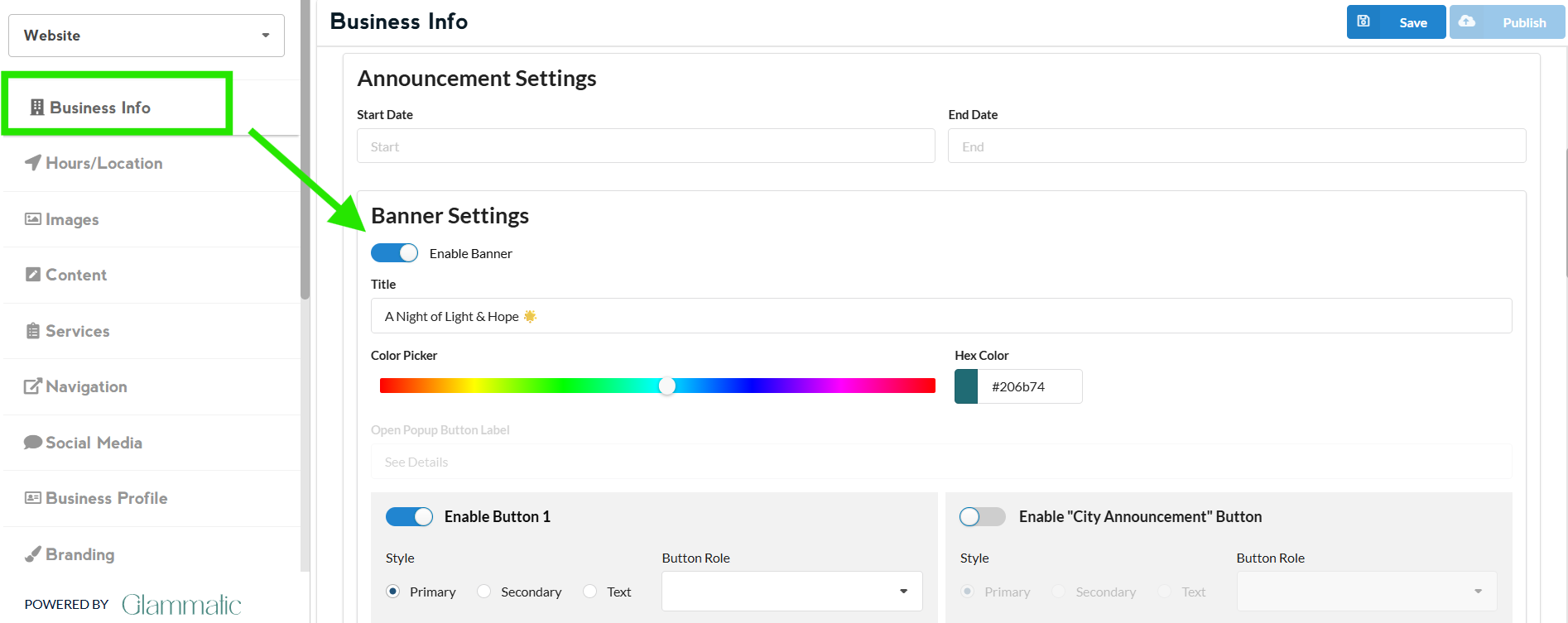
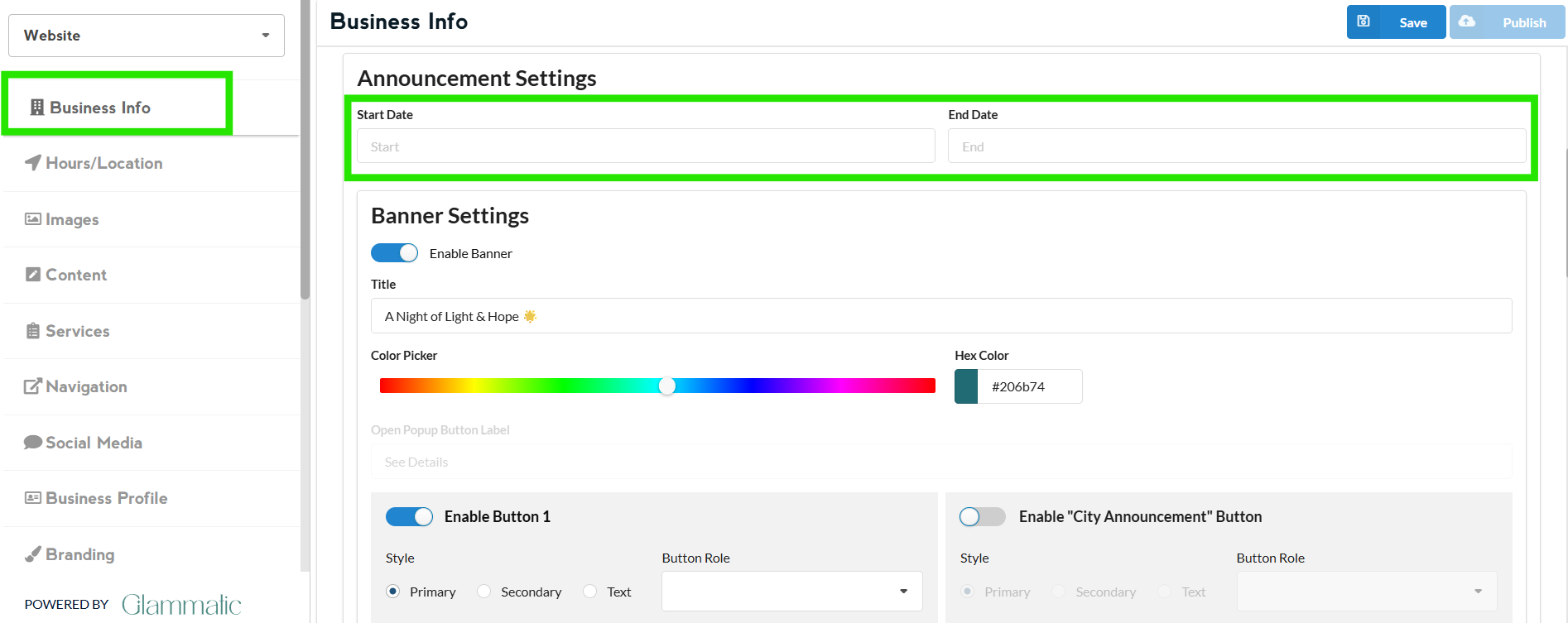
You may also put a start and end date, or change the banner's color using the 'color picker'
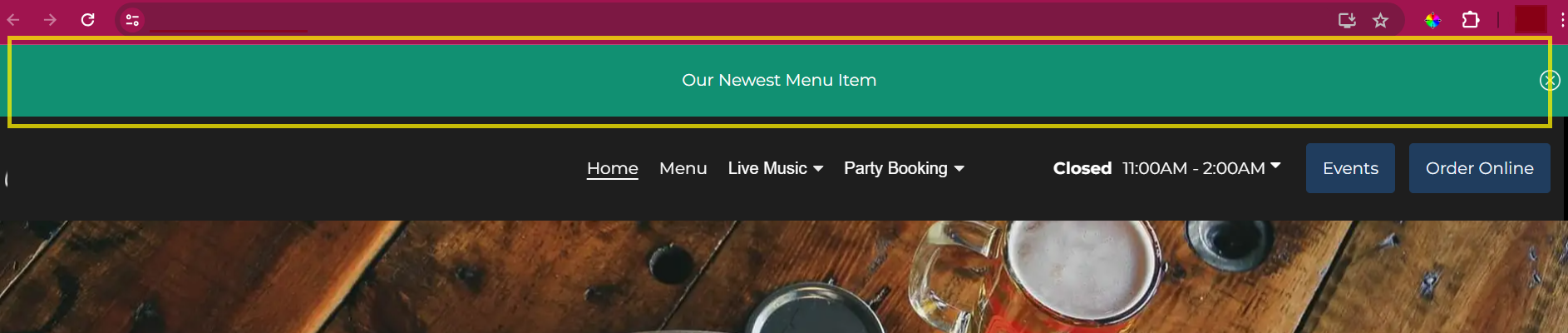
To set your expectations, this is what a banner looks like. Color of the banner can be changed using the 'color picker'
POP-UP BANNER:
Make sure your banner settings is enabled
You may also edit the pop-up delay, duration, display settings, and add an image
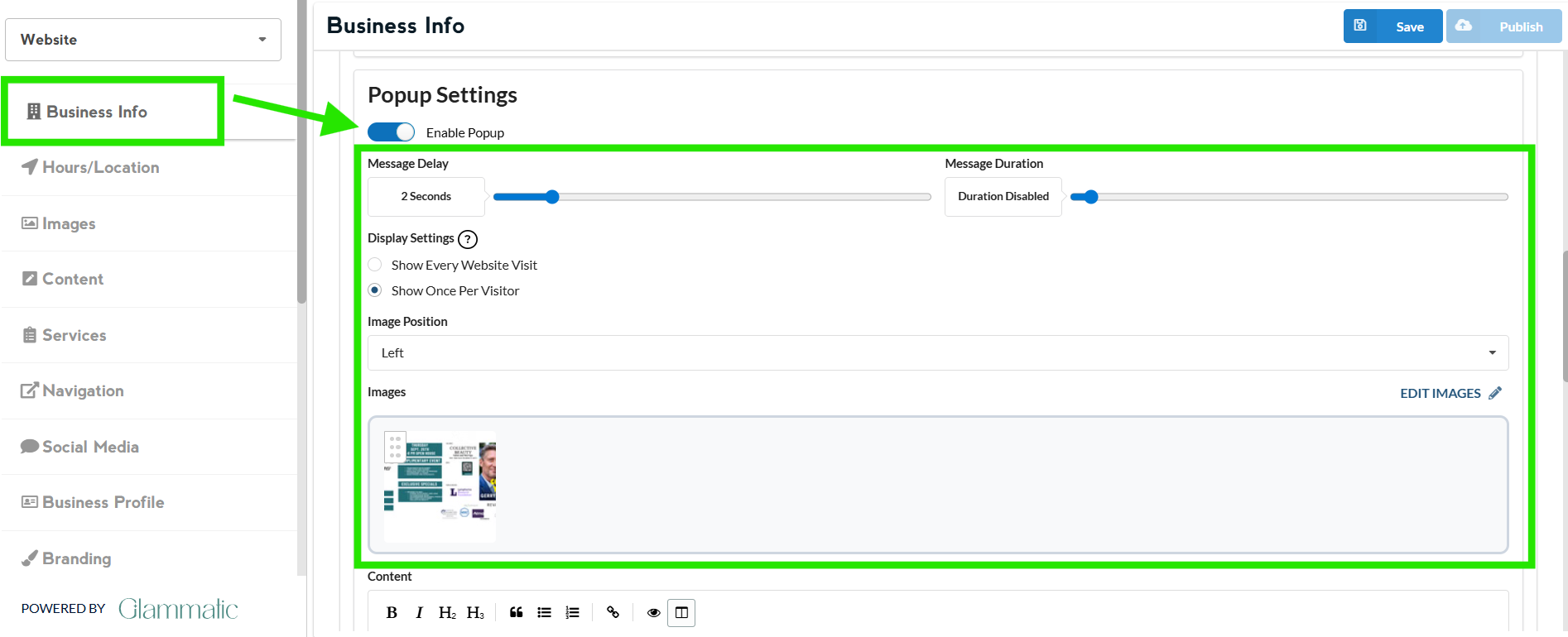
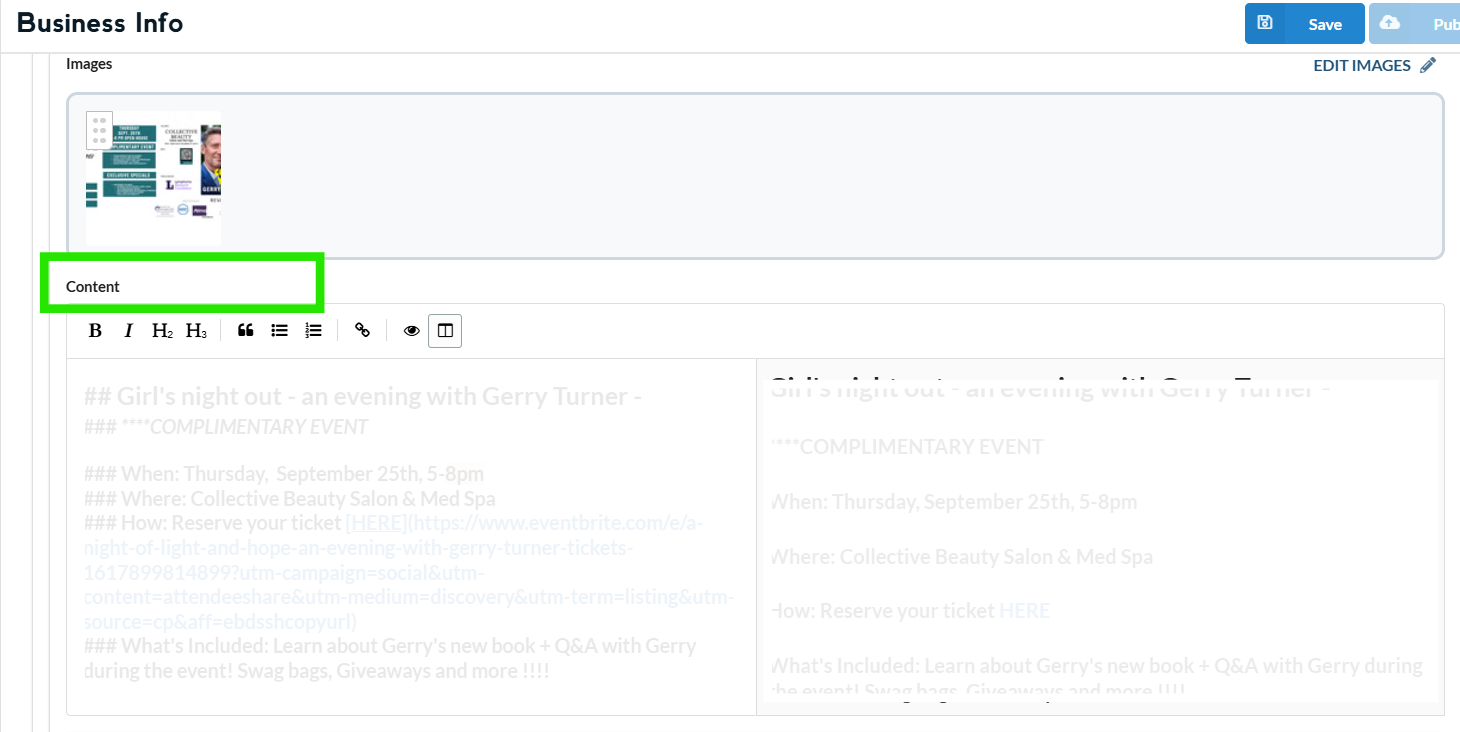
Content is where you place the details you want to see on the pop-up
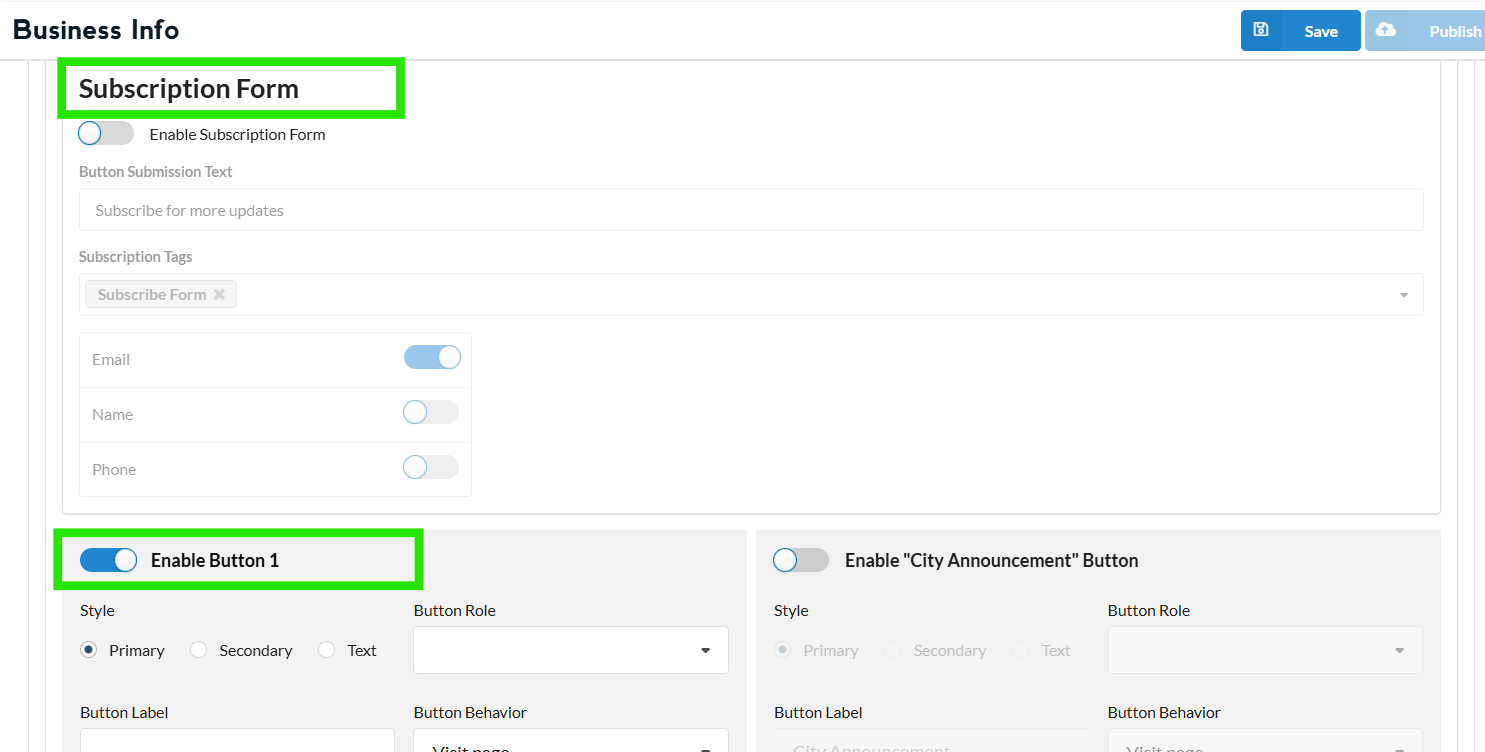
Subscription form is where you can add a space where the customer can enter their info to receive future updates
Enable button 1 and 2 lets you add one or 2 buttons to your pop-up banner, each linked to a different page or website.
Note: The appearance of your pop-up banner still depends on its content—whether you’ve added an image, a form, or just text. We recommend contacting help@glammatic.com for assistance with your banner.
Once done editing, click on Save and then Publish
Changes that you do to the website appear 2-3 minutes after you click on Publish