How to Set Up Google Connections and Reviews
Log in to the backend dashboard
Go to Business Profile > Authorize Connection
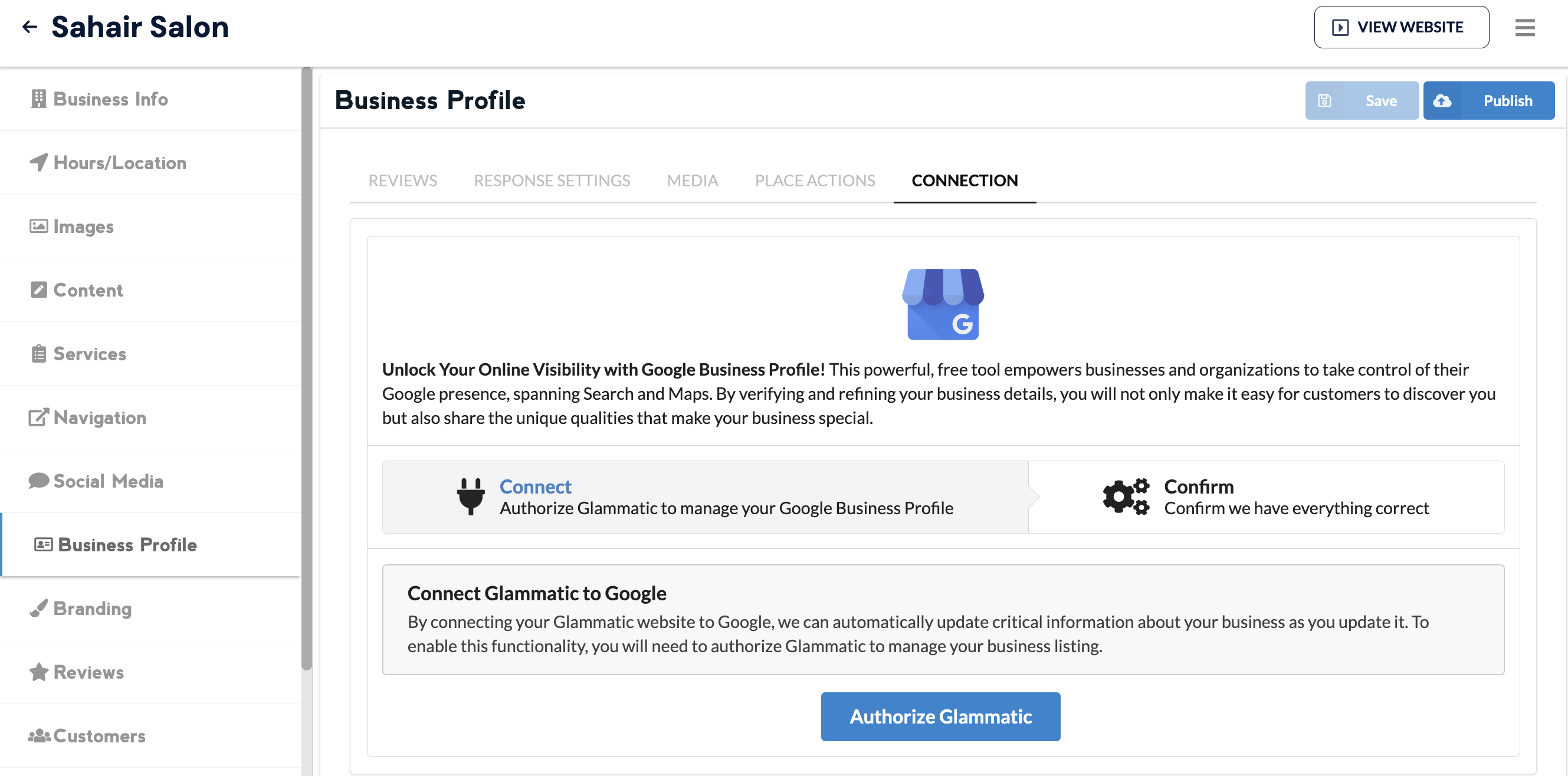
Log in to your Google Business profile and follow the steps to set up the connection
Once connected, assign Google Business Pages to respective locations (requires that your Google Business Pages are managed by the same Google account–if you're using two google accounts to manage your GBP, please consolidate into one)
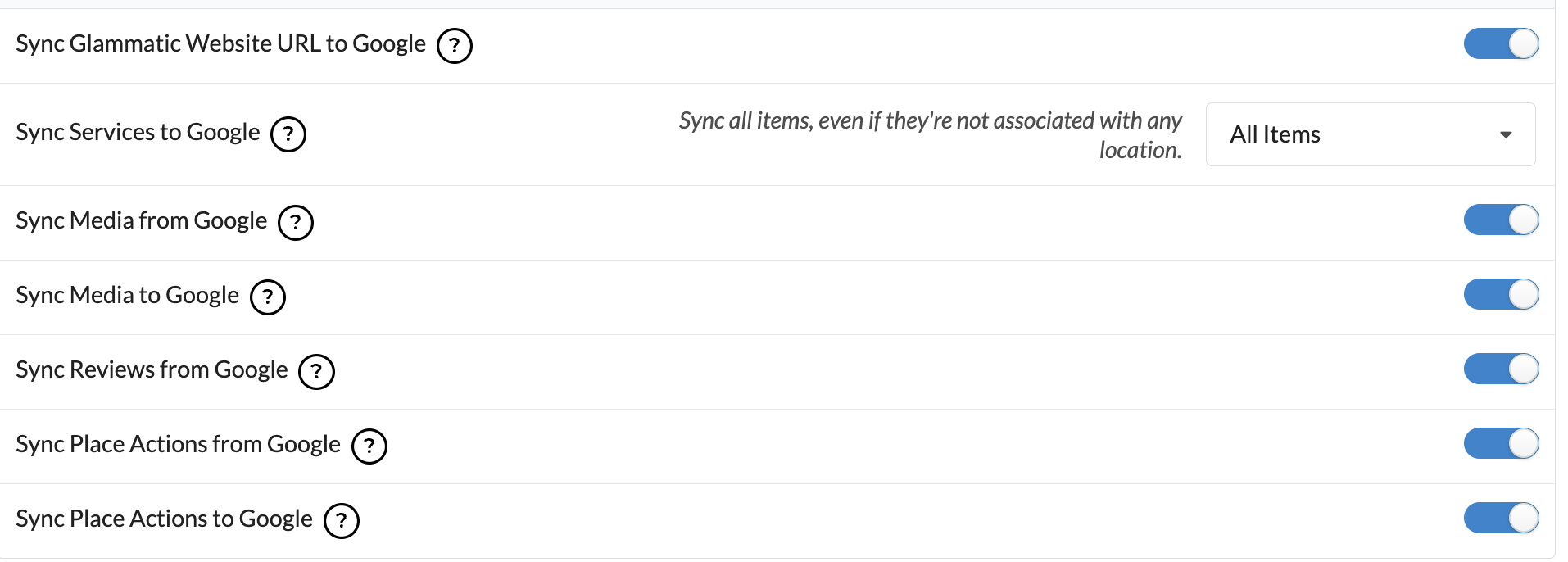
Set up your profile settings–I recommend turning all of these on
You can sync your services based on only services associated to each location (assigned), all items (if all services are offered across the board) or assigned and then unassigned items.
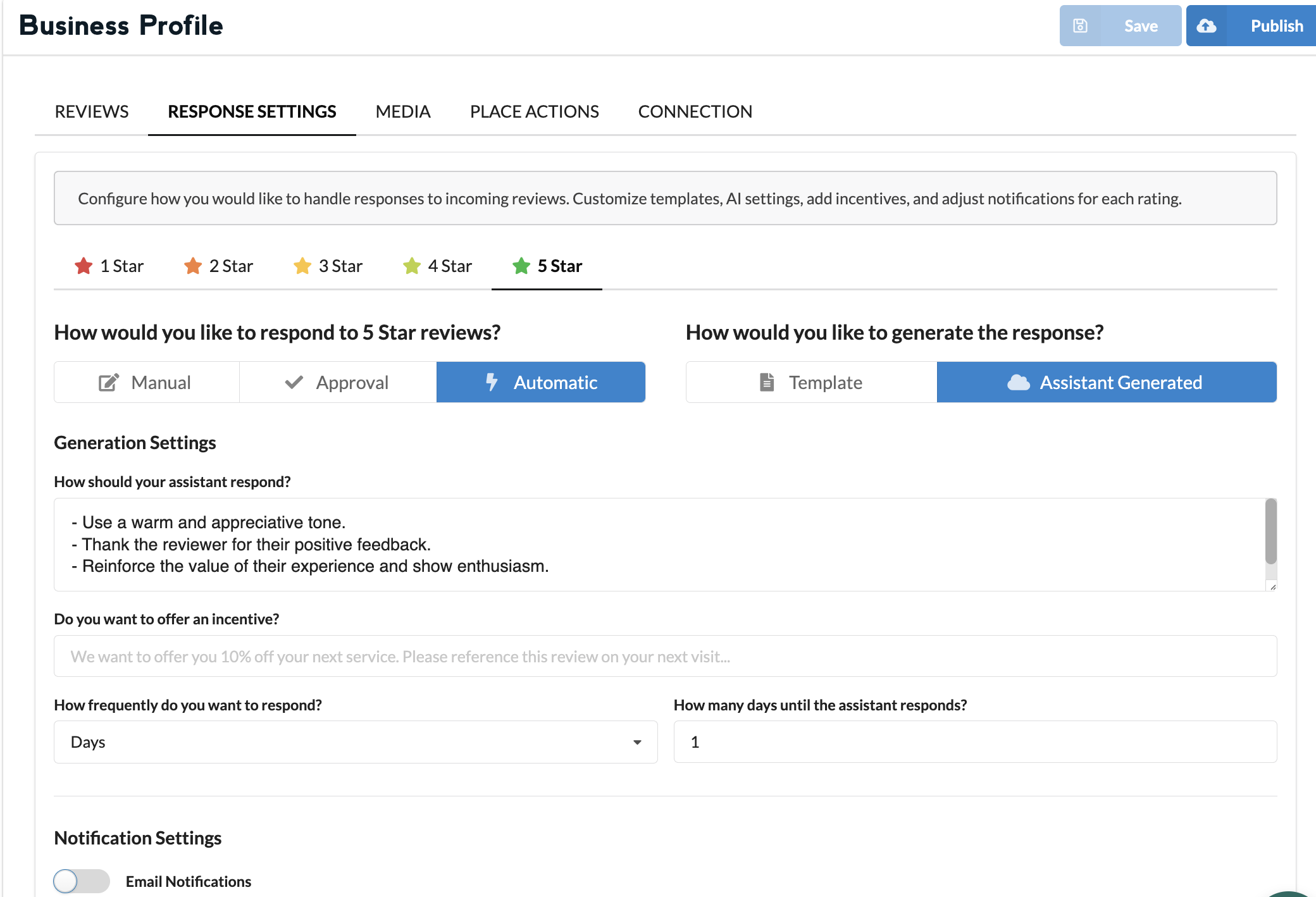
Configure Response Settings–set up for 1,2,3,4,5 star reviews based on preferences
I recommend setting up notifications for bad reviews to improve visibility and ensure proper action is taken outside of the review (ie. calling client)
There are 3 ways to set up reviews: manual, approval, automatic
Use Automatic or Approval until you review and feel comfortable with approach
You can use template or assistant generated–I recommend assistant generated so they are unique and different
Provide instructions to the ai agent for each type of review using bulleted prompts to create the vibe/tone you're going for, if you'd like to offer an incentive. If using Automatic select when you want it to be posted–we recommend 1 day
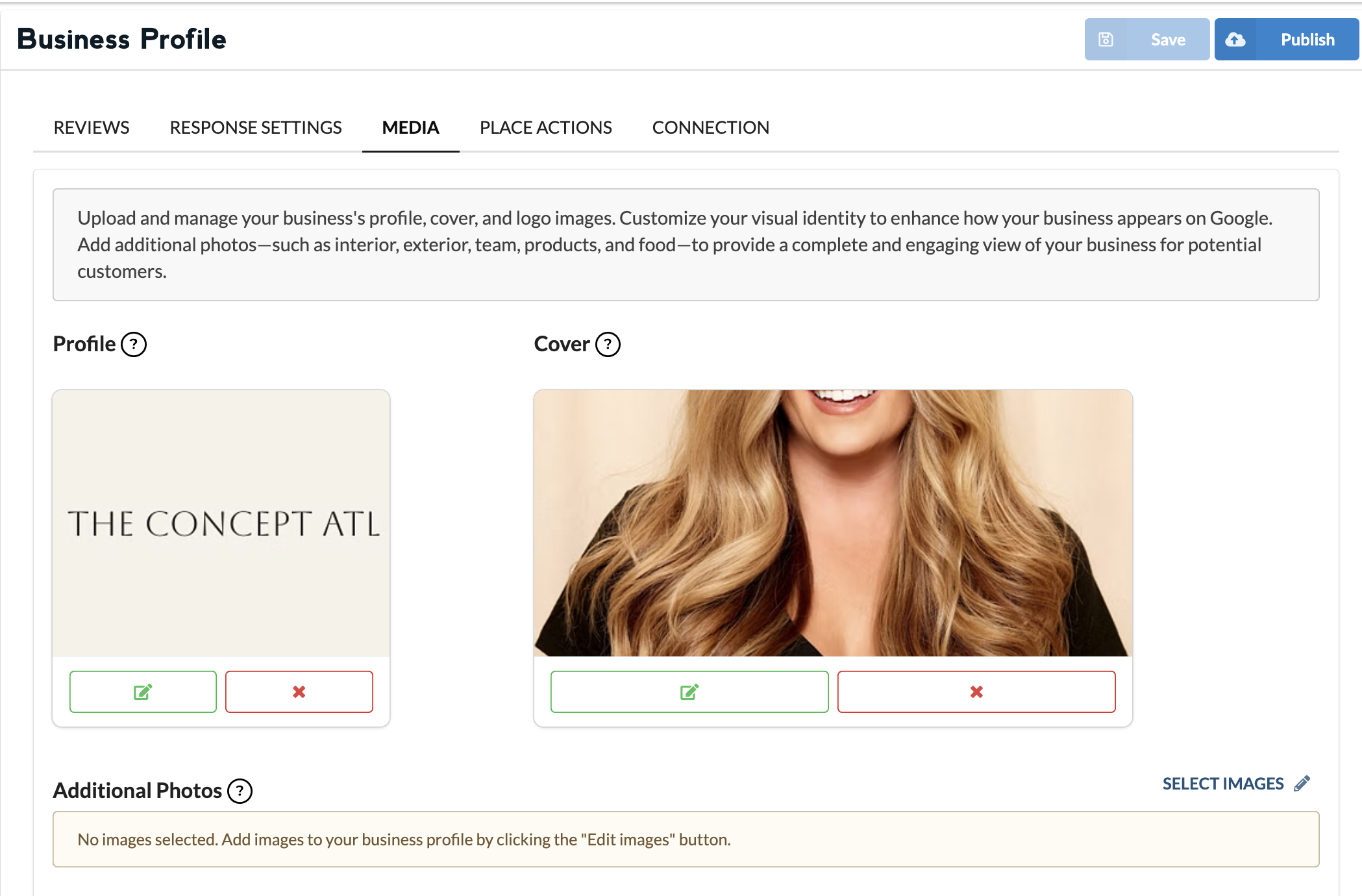
Set Up Media (confirm logo, cover, and add photos)
Set Up Place Actions (edit existing or add new)
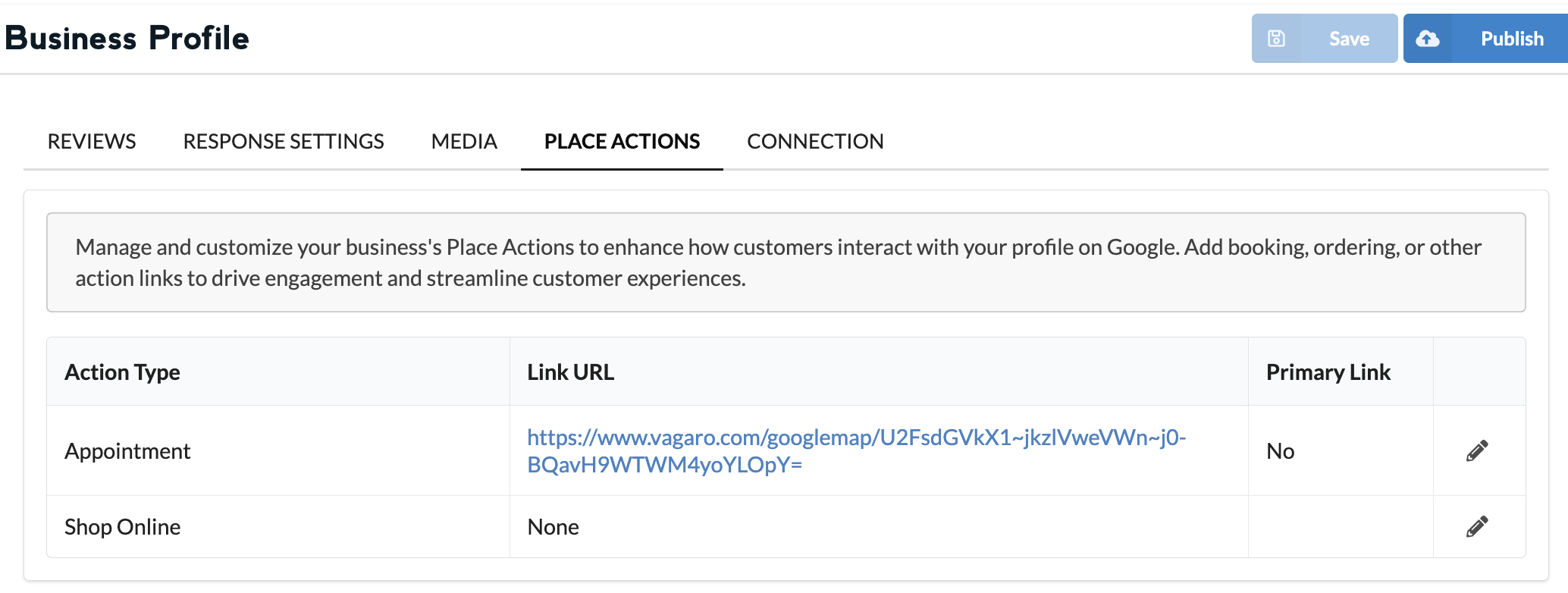
Save and then publish