Responding to Google Business Review
Login to your Glammatic Dashboard (app.gofisherman.com)
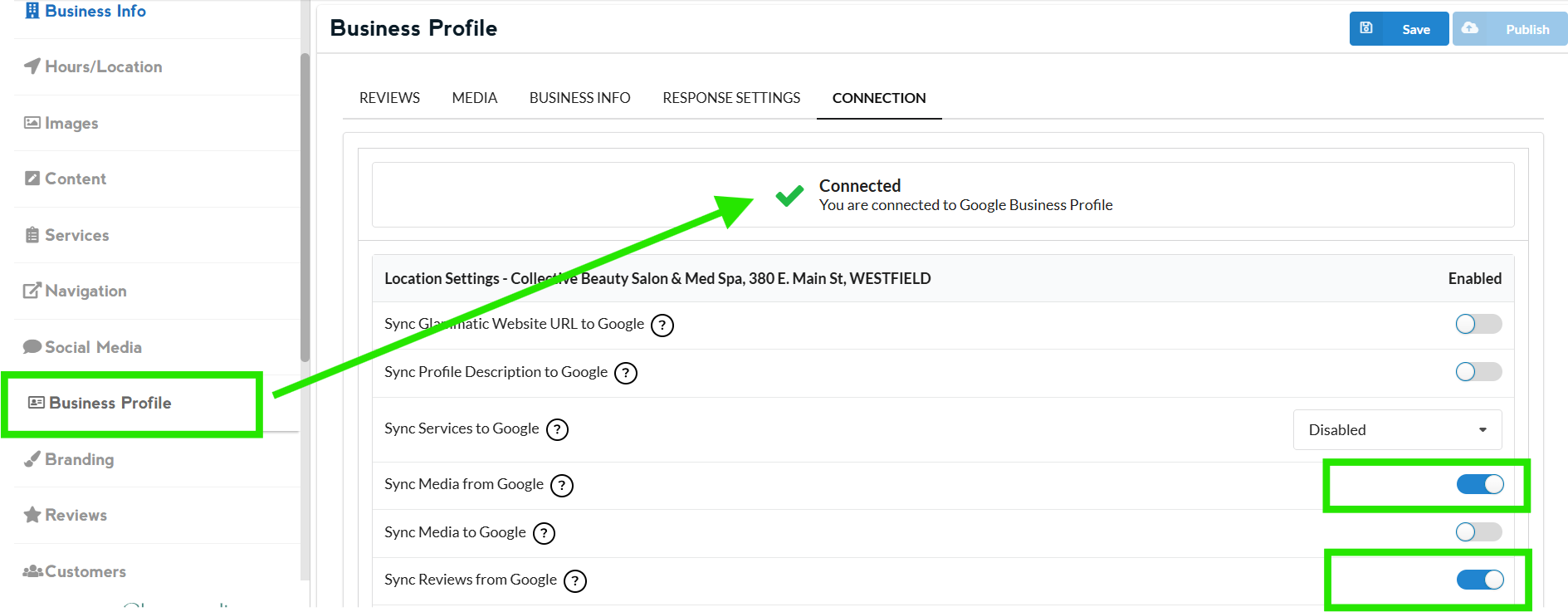
Go to “Business Profile” section. Please note that the tabs in Business Profile are only available when Google Business is connected.
You can also check this article on How to Integrate Your Google Business Profile in case you need help in connecting
CONNECTION Tab - Is where you will see if your Business Profile is connected. If you see it's connected, make sure that 'Sync Media from Google' and ' Sync Reviews from Google' are both toggled as active
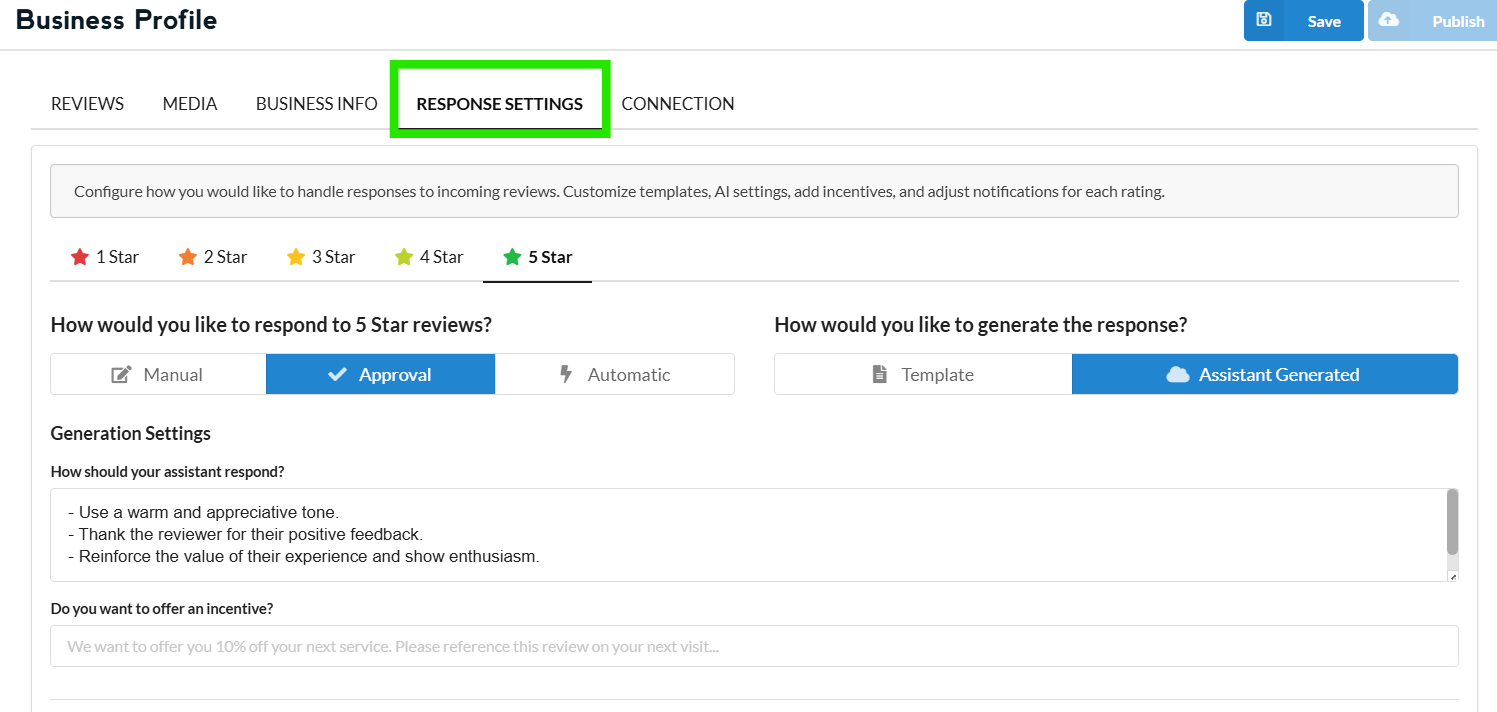
RESPONSE SETTINGS - Where you can configure how you would like to handle responses to incoming reviews. Customize templates, AI settings, add incentives, and adjust notifications for each rating.
BUSINESS INFO - Where you can edit your Google business description
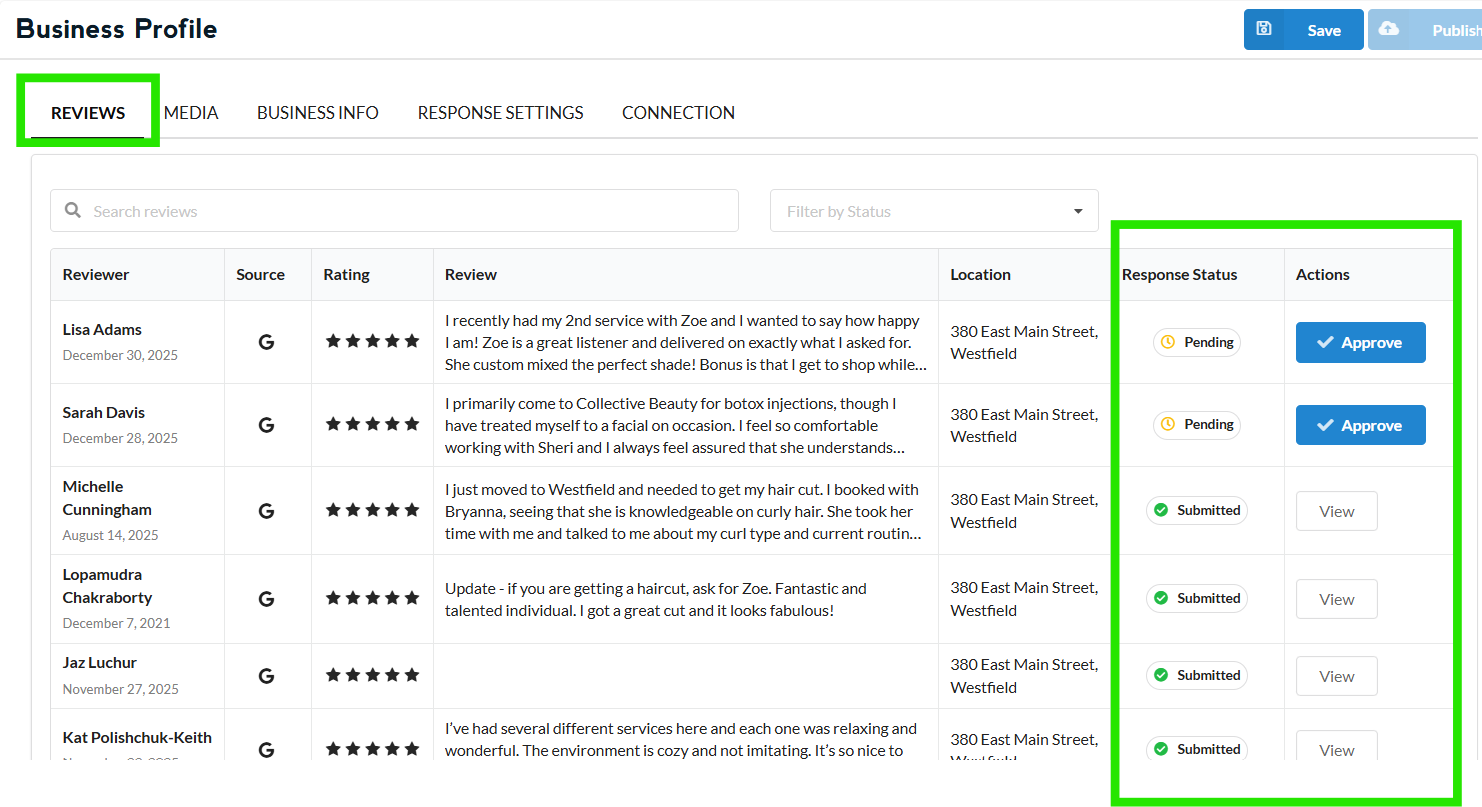
REVIEWS - This is where all customer reviews appear, and where you can approve the AI-generated response. You also have the option to create responses manually by configuring your ‘Response Settings.’
Make sure to click ‘Save,’ then ‘Publish’ when making changes.
Changes usually take 2–3 minutes to take effect.